Using Township Canada for Delivery & Field Route Planning
Plan efficient delivery routes and field visits using legal land descriptions. Convert LSD lists from spreadsheets, visualize stops on a map, and get driving directions.
You have a spreadsheet of legal land descriptions and a truck full of deliveries. How do you figure out the best order to visit them all? Township Canada turns your list of LSDs into mapped, routable locations - so you can plan your day instead of guessing.
The problem
Field workers across western Canada deal with the same challenge: a dispatch list, work order, or delivery schedule with locations written as legal land descriptions. The descriptions tell you where - but not how to get there efficiently, what roads connect them, or which stops to group together.
This guide walks through the full workflow, from raw LSD list to optimized route.
Step 1: Convert your locations
Start by converting your list of legal land descriptions to GPS coordinates.
Small list (under 20 locations)
Type or paste each description into the search box. The AI Assistant can also convert multiple locations in a single message - just list them separated by commas.
Large list (20+ locations)
Use Batch Conversion:
- Copy the column of legal descriptions from your spreadsheet
- Go to Batch Conversion in the main menu
- Paste the descriptions (one per line) or upload a CSV file
- Click Convert Records
All locations appear on the map and in the results table within seconds.
Tip: If your spreadsheet has extra columns (well name, customer name, order number), upload as CSV. Township Canada preserves your extra columns in the export.
Step 2: Visualize on the map
Once converted, all your stops display as markers on the map. This gives you an immediate visual sense of:
- Clusters - Groups of stops that are close together, good for a single day's route
- Outliers - Isolated stops that may need their own trip
- Road access - Switch to satellite imagery to check if there are visible roads or trails to each location
Click any marker to see the full legal description and coordinates. Use the map controls to zoom into specific areas.
Step 3: Plan your route
Point-to-point directions
For any two stops, use the Directions feature:
- Click Directions on a search result
- Enter your starting point (an address, another LSD, or your current GPS location)
- Get distance, estimated travel time, and turn-by-turn instructions
- Click See it on Google Maps for voice-guided navigation on your phone
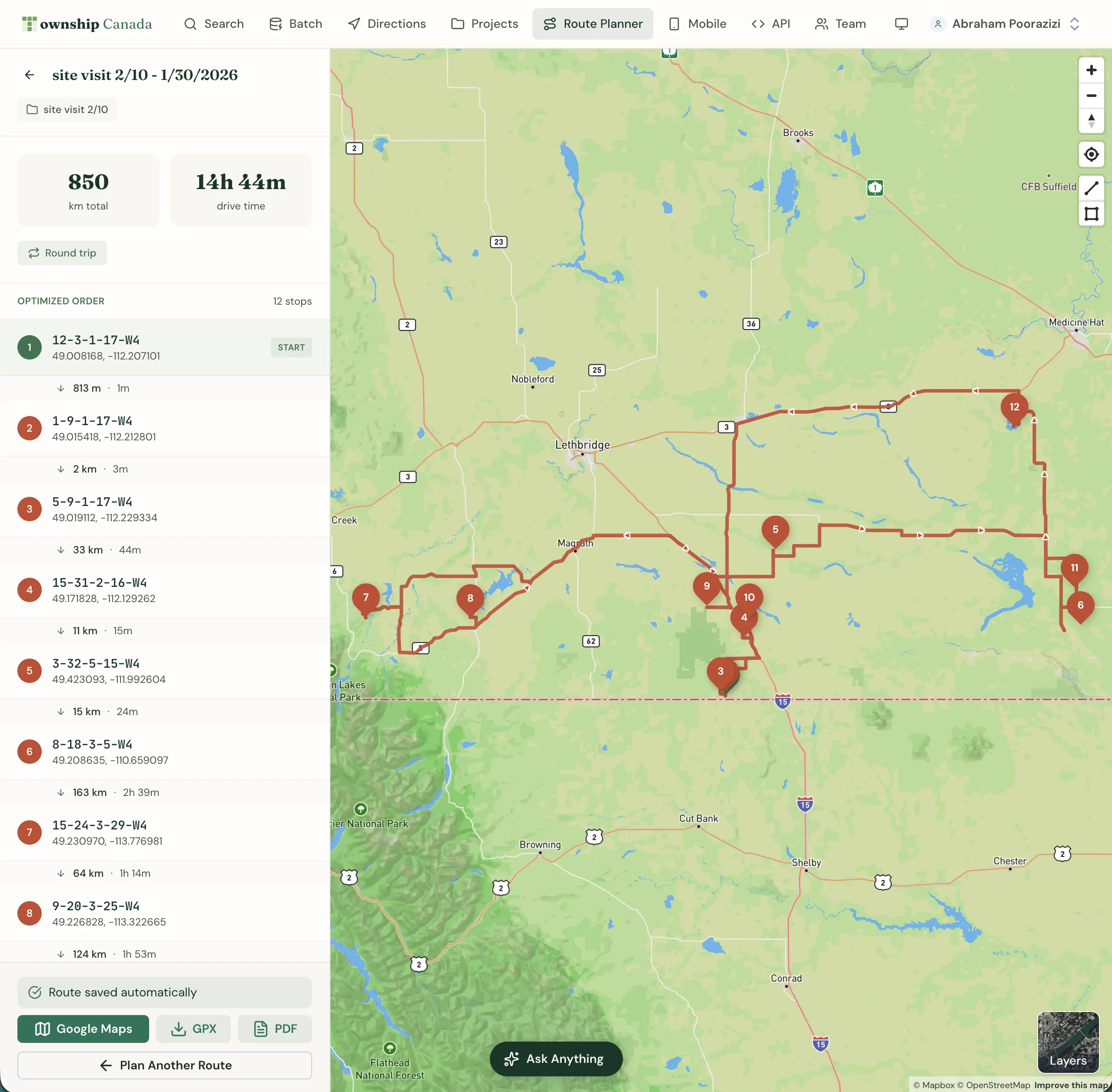
Multi-stop route optimization
The Route Planner calculates the most efficient order to visit multiple locations:
- Add your stops to the route planner (up to 12 locations)
- The planner reorders them to minimize total driving distance
- Get directions for the full optimized route
Route Planner is available on Pro (10 optimizations/month) and Business (unlimited) plans.
Step 4: Export for your team
Share the converted and planned data with your team in whatever format they need:
| Format | Best for | Plan required |
|---|---|---|
| CSV | Import into your dispatch spreadsheet or fleet management system | Business |
| KML | Load into Google Earth or transfer to Garmin GPS devices | Business |
| Print a formatted report for drivers without smartphones | Pro or Business | |
| Shapefile | Import into GIS software for spatial analysis | Business |
| GeoJSON | Use in web mapping applications | Business |
| DXF | Import into CAD software for site planning | Business |
Download from the Download dropdown above your search or batch results.
Step 5: Save for reuse
If you run the same routes regularly (weekly deliveries, monthly inspections), save the locations to a Project:
- Click Save to Project above the results
- Create a project (e.g., "Q1 Delivery Routes" or "Pipeline Inspection Sites")
- Assign categories and colors to group related stops
Projects persist across sessions, so you do not need to re-convert the same descriptions every time.
Industry examples
Agricultural deliveries
A fertilizer company receives orders with field locations written as LSDs. Paste the order spreadsheet into batch conversion, map the day's deliveries, and use the route planner to find the shortest driving path between farms.
Equipment inspections
An ABSA vessel inspector needs to visit pressure equipment at well sites across a 200 km region. Convert the site LSDs from the inspection schedule, identify geographic clusters for daily grouping, and export to KML for GPS navigation.
Emergency services
A volunteer fire department receives a call with a legal land description. Enter the LSD in the search box, get instant GPS coordinates, and click See it on Google Maps for turn-by-turn navigation to the site.
Pipeline inspections
A pipeline integrity team needs to walk a corridor, inspecting at specific LSD locations. Batch convert the inspection points, view them on satellite imagery to plan access routes, and export to GeoJSON for the field crew's mapping tablets.
Courier and logistics
A rural courier has 30 deliveries across two townships. Batch convert the addresses and LSDs, use the map to split them into a morning route (east side) and afternoon route (west side), and export each as a KML file for the drivers.
Tips for field teams
- Use satellite imagery to check road access before driving out - not every legal subdivision has a road to it
- Download offline - Export to KML and load into Google Earth or your GPS device before heading to areas with poor cell coverage
- Save frequently used areas as Projects so you can pull them up quickly without re-converting
- Use the mobile app (included with every paid plan) for real-time GPS tracking overlaid on the DLS grid while in the field
Related guides
- Batch Conversion - convert large lists of descriptions
- Route Planner - optimize multi-stop routes
- Directions - point-to-point navigation
- Download Results - export formats explained
- Projects & Quick Saves - organize and reuse locations
- Mobile App - field use with GPS tracking
Related Guides
AI Assistant - Ask Questions About Legal Land Descriptions
Use Township Canada's AI Assistant to convert legal land descriptions, get directions, validate formats, ask about a parcel's wells, soil, crops, and flood history, and learn about DLS, NTS, and Geographic Township systems through natural conversation.
Batch Convert Legal Land Descriptions - 5,000+ Records
Convert thousands of legal land descriptions to GPS coordinates and vice versa in seconds. Export to CSV, KML, Shapefile, DXF, or GeoJSON. Perfect for oil & gas, real estate, GIS, and agriculture.
Township Canada in ChatGPT and Claude
Add the published Township Canada community connector in Claude, connect ChatGPT over MCP, and use the plugin to convert land descriptions and read parcel reports.