Route Planner - Multi-Stop Route Optimization
Plan optimized multi-stop routes between legal land descriptions. Visit multiple well sites, properties, or field locations in the most efficient order with turn-by-turn directions.
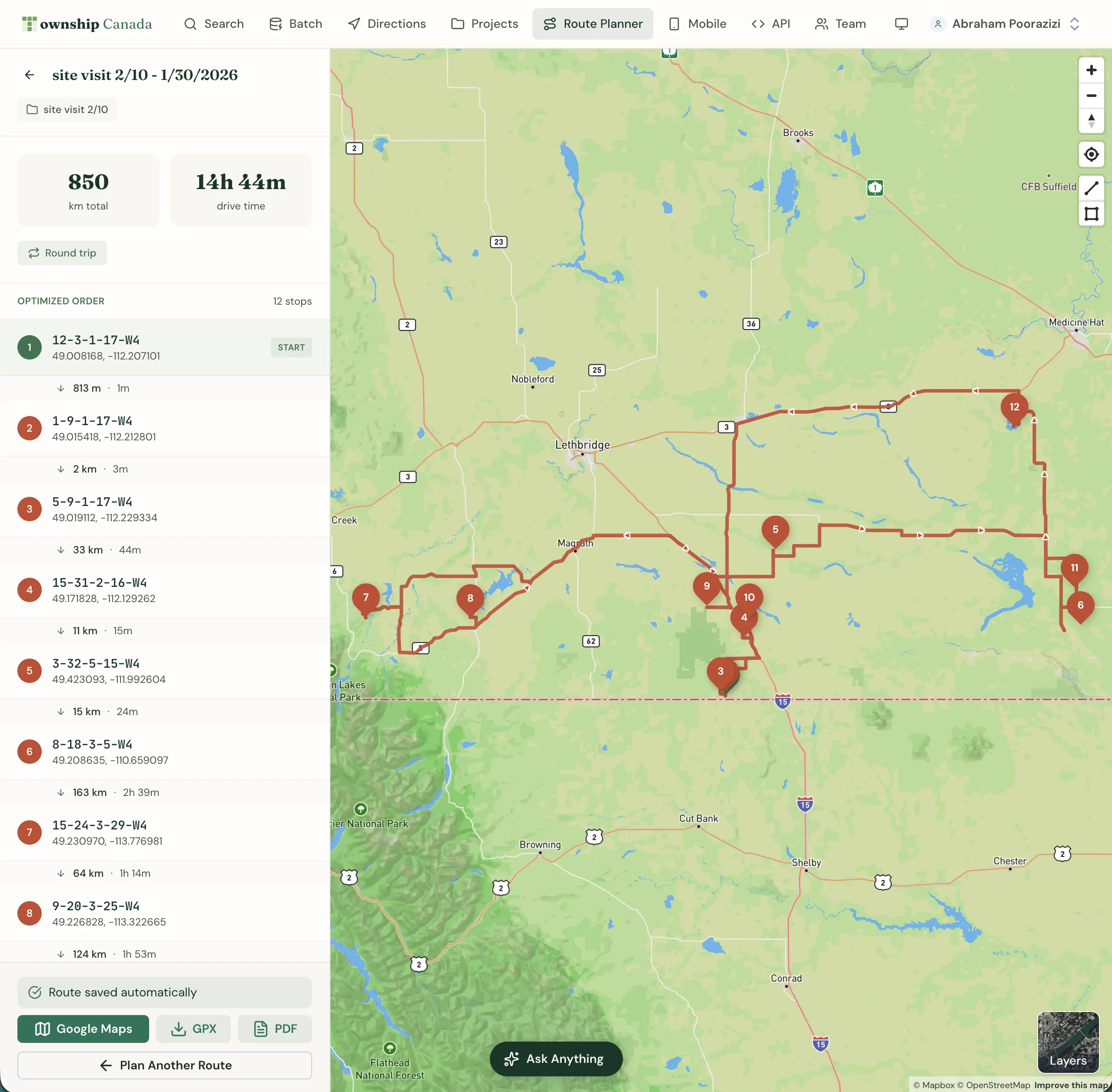
Optimize routes for multiple destinations. Township Canada's Route Planner calculates the most efficient order to visit multiple locations, saving time and fuel for field workers, surveyors, and anyone managing multiple site visits.
Why use Route Planner?
When you have multiple locations to visit in a day, the order matters. Route Planner uses advanced optimization algorithms to:
- Minimize travel time by finding the most efficient route
- Reduce fuel costs by eliminating unnecessary backtracking
- Plan round trips that return you to your starting point
- Handle legal land descriptions that standard GPS apps don't understand
Plan availability
Route Planner is available on Pro and Business plans:
- Starter plan: Not available
- Pro plan: 10 optimizations per month (up to 12 locations per optimization)
- Business plan: Unlimited optimizations (up to 12 locations per optimization)
Access Route Planner from the Route Planner link in the main navigation.
Who uses Route Planner?
Oil & Gas Field Workers
Plan daily inspection routes visiting multiple well sites, compressor stations, and pipeline checkpoints. Optimize the order to minimize driving time between LSDs.
Land Surveyors
Visit multiple survey points, corner posts, and boundary markers in a single trip. Route Planner ensures you cover all locations efficiently.
Real Estate Professionals
Tour multiple rural properties in one day. Optimize your route to maximize showings while minimizing travel between listings.
Agricultural Operations
Plan routes for field inspections, equipment checks, or grain bin visits across multiple quarter sections.
Utility Workers
Optimize service calls and maintenance routes across rural areas where addresses don't exist.
Creating a route
Open Route Planner
Click Route Planner in the main navigation to open the route planning interface.
Add locations
Add locations to your route using one of these methods:
- Search: Type a legal land description, address, or coordinates
- From Projects: Import locations from an existing project
- Click on map: Click locations directly on the map
Reorder stops (optional)
Drag and drop locations to manually adjust the order, or let the optimizer find the best order automatically.
Optimize the route
Click Optimize to calculate the most efficient order for your stops. Route Planner reorders your locations and displays the optimized route on the map.
View directions
The optimized route shows:
- Total distance and estimated travel time
- Distance and time between each stop
- Turn-by-turn directions for navigation
Creating routes from Projects
Import locations from your saved Projects:
- Open Route Planner
- Click From Project
- Select a project
- Choose which locations to include
- Click Add to Route
This is useful for creating routes from a set of locations you've already saved and organized.
Route options
Round trip
Enable Round Trip to return to your starting location at the end of the route. The optimizer accounts for the return leg when calculating the most efficient order.
Starting point
By default, the first location in your list is the starting point. You can set any location as the start by clicking its options menu and selecting Set as Start.
Destination
For one-way trips, the last location is your destination. Set any location as the final destination by selecting Set as Destination from its options menu.
Understanding the optimized route
After optimization, Route Planner displays:
Route summary
- Total distance: Combined driving distance for all legs
- Total time: Estimated driving time including all stops
- Number of stops: Locations in your route
Stop details
Each stop shows:
- Legal land description or address
- Distance and time from the previous stop
- Notes (if added)
- Stop number in the optimized order
Map visualization
The map displays:
- Route line showing the driving path
- Numbered markers for each stop
- Connection lines between stops
Saving routes
Save optimized routes for future reference:
- Click Save Route
- Enter a name for the route
- The route saves with all locations and optimization settings
Access saved routes from the Route Planner page. Saved routes remember the optimized order and can be re-optimized if you add or remove locations.
Exporting routes
Export your optimized route:
- GPX: Download the route for GPS devices and navigation apps
- PDF: Printable route sheet with turn-by-turn directions (Pro and Business)
- Open in Google Maps: Hand off your route for voice-guided navigation
Tips for efficient routes
Limit stops per route
Route optimization supports up to 12 locations per optimization (a hard limit enforced by the routing engine). For larger numbers of locations, split them into multiple routes by geographic area.
Group by area
If you have locations spread across a large region, create separate routes for each area rather than one massive route.
Use round trip wisely
Enable round trip when you need to return to your starting point (like an office). Disable it for one-way trips.
Save frequently used routes
If you visit the same locations regularly (like weekly inspections), save the route for quick access.
Related guides
- Get Directions - Point-to-point navigation
- Projects - Organize locations for route planning
- Search & Convert - Find legal land descriptions to add to routes
- Mobile App - Turn-by-turn navigation in the field
Related Guides
AI Assistant - Ask Questions About Legal Land Descriptions
Use Township Canada's AI Assistant to convert legal land descriptions, get directions, validate formats, ask about a parcel's wells, soil, crops, and flood history, and learn about DLS, NTS, and Geographic Township systems through natural conversation.
Batch Convert Legal Land Descriptions - 5,000+ Records
Convert thousands of legal land descriptions to GPS coordinates and vice versa in seconds. Export to CSV, KML, Shapefile, DXF, or GeoJSON. Perfect for oil & gas, real estate, GIS, and agriculture.
Township Canada in ChatGPT and Claude
Add the published Township Canada community connector in Claude, connect ChatGPT over MCP, and use the plugin to convert land descriptions and read parcel reports.