Projects and Quick Saves - Organize Your Locations
Save legal land descriptions to Quick Saves or organize them into Projects with categories. Export your saved locations and use them with Route Planner.
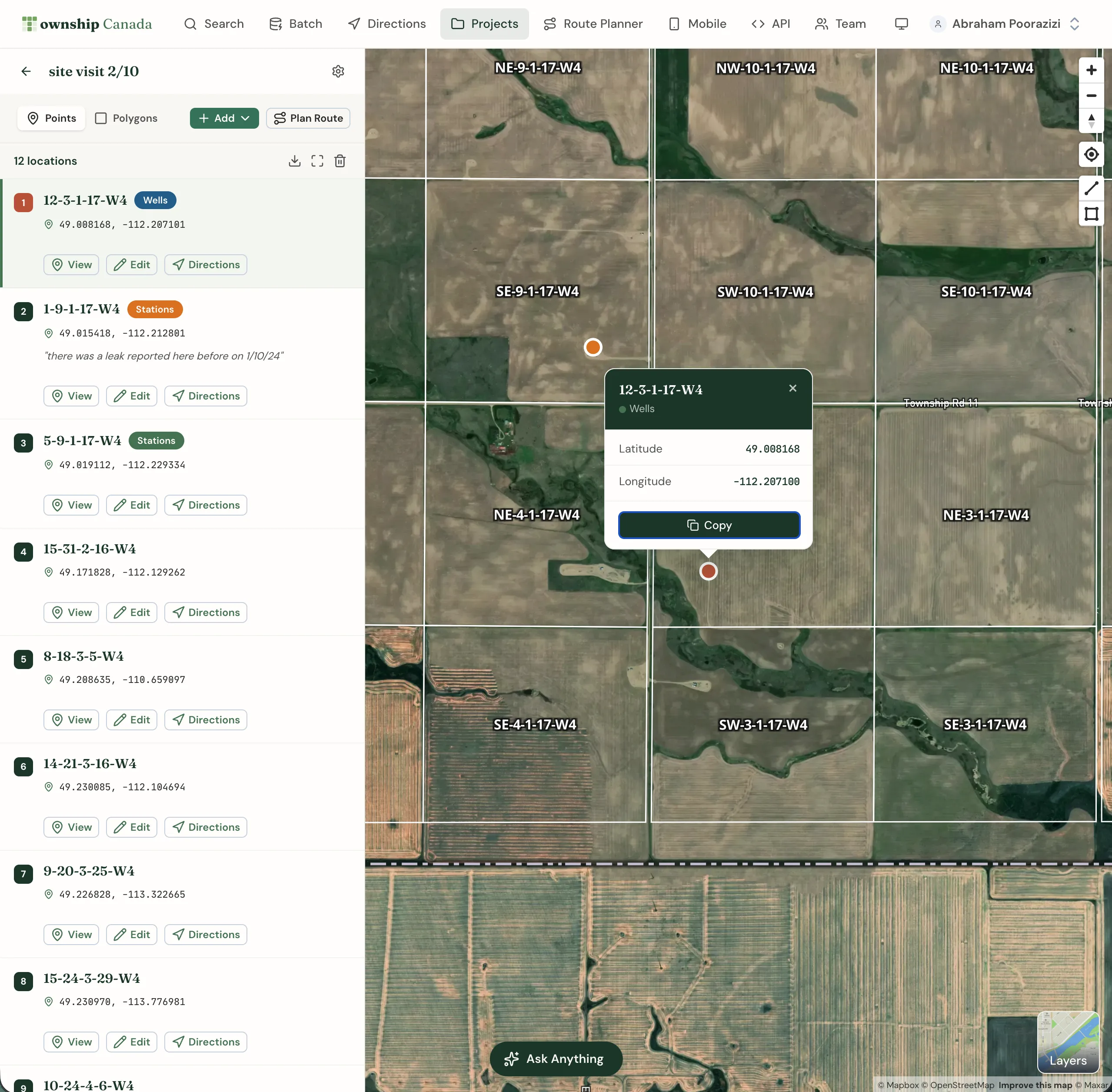
Township Canada's Projects feature provides a powerful way to save and organize locations for future reference. Whether you're tracking properties, planning site visits, or managing multiple job sites, Projects keeps your locations organized and accessible.
Quick Saves vs Projects
Township Canada offers two ways to save locations:
Quick Saves
Quick Saves provides a simple way to bookmark locations from search results. Available to all users, Quick Saves works like a favorites list for locations you want to access later.
- Starter plan: Up to 20 quick saves
- Pro plan: Up to 100 quick saves
- Business plan: Unlimited quick saves
Projects
All users can create Projects to organize locations by job site, client, or any other grouping. Each project can contain locations with categories for further organization.
- Starter plan: 1 project
- Pro plan: 5 projects
- Business plan: Unlimited projects
Saving a location
Save locations from search results or by clicking on the map.
Search for a location
Use the search box to find a legal land description, coordinates, or address. The result appears in the left panel with action buttons.
Click the Save button
Click the Save dropdown button on the search result card. Select either "Quick Saves" or a specific project to add the location.
Add optional details
After saving, you can add notes and assign categories to help organize your locations.
Accessing your saved locations
Open Projects from the main navigation menu. The Projects panel displays your Quick Saves and any custom projects you've created.
- Click on Quick Saves to view all bookmarked locations
- Click on a Project to view its locations
- Use the search box to filter across all projects
Managing projects
Creating a project
All paid users can create projects by clicking the + New button in the Projects panel. Enter a name for your project and click Create. Limits by plan: Starter 1 project, Pro 5 projects, Business unlimited.
Project display modes
Each project can display locations as either:
- Points: Show locations as individual markers on the map
- Polygons: Display the full boundary of each legal land description
Toggle between modes using the display mode selector in the project header.
Adding categories
Organize locations within a project using categories. Click on a location to edit its details and assign a category. Categories help you filter and group related locations.
Removing saved locations
To remove a location from Quick Saves or a project:
- Open the project containing the location
- Click the trash icon on the location card
- Confirm the deletion
Removing a location from Projects does not delete the original legal land description data-it only removes the bookmark.
Exporting saved locations
Export your saved locations in multiple formats for backup, sharing, or use in other applications:
- PDF: Formatted report with location details
- CSV: For spreadsheet applications like Excel
- KML: For Google Earth
- Shapefile: For GIS software like ArcGIS and QGIS
- GeoJSON: For web mapping applications
- DXF: For CAD applications
See the Download Results guide for more details on export formats.
Using Projects with Route Planner
Create optimized routes from your saved locations using the Route Planner. Pro users can run up to 10 optimizations per month, while Business users have unlimited access.
- Open your project
- Select the locations you want to visit
- Click Route to open Route Planner
- Optimize the route for the most efficient travel path
See the Directions guide for more about navigation features.
Related guides
- Search & Convert Locations - Find locations to add to your projects
- Download Results - Export your saved locations
- Get Directions - Navigate to your saved locations
Related Guides
AI Assistant - Ask Questions About Legal Land Descriptions
Use Township Canada's AI Assistant to convert legal land descriptions, get directions, validate formats, ask about a parcel's wells, soil, crops, and flood history, and learn about DLS, NTS, and Geographic Township systems through natural conversation.
Batch Convert Legal Land Descriptions - 5,000+ Records
Convert thousands of legal land descriptions to GPS coordinates and vice versa in seconds. Export to CSV, KML, Shapefile, DXF, or GeoJSON. Perfect for oil & gas, real estate, GIS, and agriculture.
Township Canada in ChatGPT and Claude
Add the published Township Canada community connector in Claude, connect ChatGPT over MCP, and use the plugin to convert land descriptions and read parcel reports.