By Township Canada
Organize Your Locations with Projects and Saved Places
Save any location with one click. Group saved locations into projects with categories and notes. Share projects with your team.
You've spent the morning converting 30 well locations for a pipeline route assessment. You've got the coordinates, you've seen them on the map. But tomorrow you need those same 30 locations again - plus 10 more that the client added overnight. Without a way to save your work, you're starting from scratch.
The previous version of Township Canada had no save feature. Every search was a one-time lookup. The new platform changes that with saved places and projects.
Quick Saves
Any search result on Township Canada can be saved with one click. Search for NE 14-032-21 W2M, and a save button appears next to the result. Click it, and that location is added to your saved places - coordinates, legal land description, and map position included.

Your saved places list lives in your account. Come back tomorrow, next week, or next month, and every saved location is still there. Click any saved place to jump to it on the map.
Projects
Saved places work well for bookmarking individual locations. But when you're working on something bigger - a pipeline route survey, a portfolio of lease locations, a crop insurance coverage area - you need a way to group related locations together.
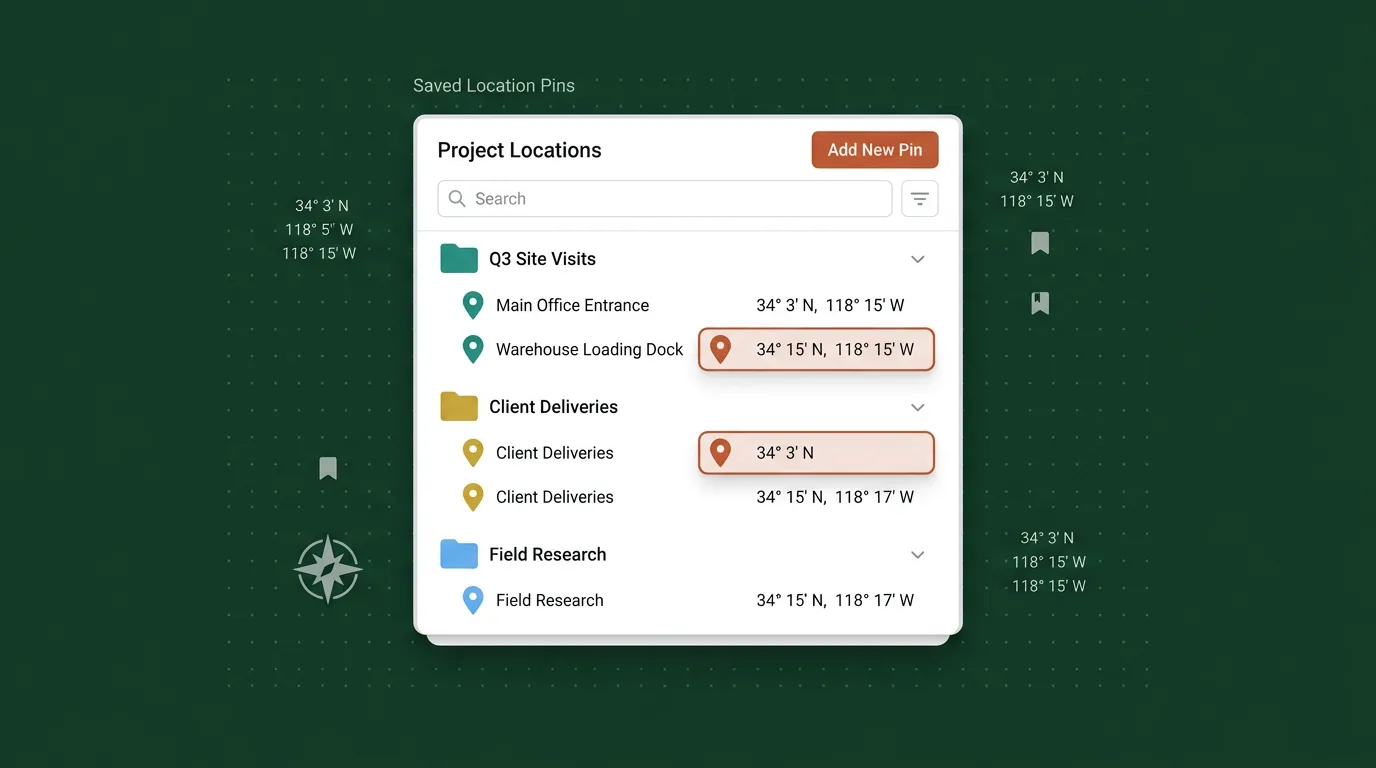
Projects do that. Create a project, give it a name and an optional description, and start adding locations to it. A project can hold as many locations as you need. Each location keeps its legal land description, coordinates, and any notes you add.
You might have:
- A Pipeline Route Assessment project with 80 crossing points and facility locations from Red Deer to Drayton Valley
- A Q3 Insurance Claims project with 45 quarter sections across southern Saskatchewan that need field verification
- A Land Acquisition - Sturgeon County project with 12 parcels your client is evaluating north of Edmonton

Each project keeps its locations separate. Work on one project without seeing the others.
Categories
Within a project, categories let you group locations further. A pipeline project might have categories for Crossing Points, Facility Sites, and Access Roads. A land acquisition project might sort parcels by Priority, Under Negotiation, and Closed.
Categories are flexible - you define the names that match your workflow. Each location in a project belongs to one category, making it easy to filter and focus on a subset of locations.
Team Sharing
On Business plans with team management, projects can be shared with team members. A project owner can invite editors (who can add, edit, and remove locations) and viewers (who can see locations and export data but not change anything).
This means a project manager can set up a project with the initial locations, share it with field crew, and everyone works from the same list. When a field technician adds a note to a location after visiting it, the project manager sees that note immediately.
Export Your Projects
Everything in a project can be exported. PDF export is available on Pro and Business plans. CSV, KML, Shapefile, GeoJSON, and DXF exports require Business. Exports include the legal land description, GPS coordinates, category, and notes for each location.
Who Uses Projects
- Pipeline and energy companies tracking well sites, pipeline crossings, and facility locations for regulatory submissions
- Land agents and brokers managing rural property portfolios for clients across multiple transactions
- Crop insurance adjusters organizing insured parcels by policy or coverage period
- Municipal planners grouping land parcels for development projects or infrastructure planning
- Environmental consultants tracking assessment sites across multiple projects and clients
Getting Started
Saved places and projects are available on every plan: Starter includes 1 custom project, Pro includes 5, and Business is unlimited. Categories, team sharing, and project settings are Business-only features. See the projects guide for a full walkthrough, or check pricing for plan details.