Using Township Canada API with Google Maps
Add legal land description search, boundary polygons, and location markers to your Google Maps application using the Township Canada API. Includes working code examples.
What You'll Build
By the end of this guide, your Google Maps application will accept a legal land description like NW-25-24-1-W5 as input, drop a marker at the location's centroid, and draw the quarter-section boundary polygon on the map. You'll also add an autocomplete search box so users can type partial descriptions and pick from suggestions.
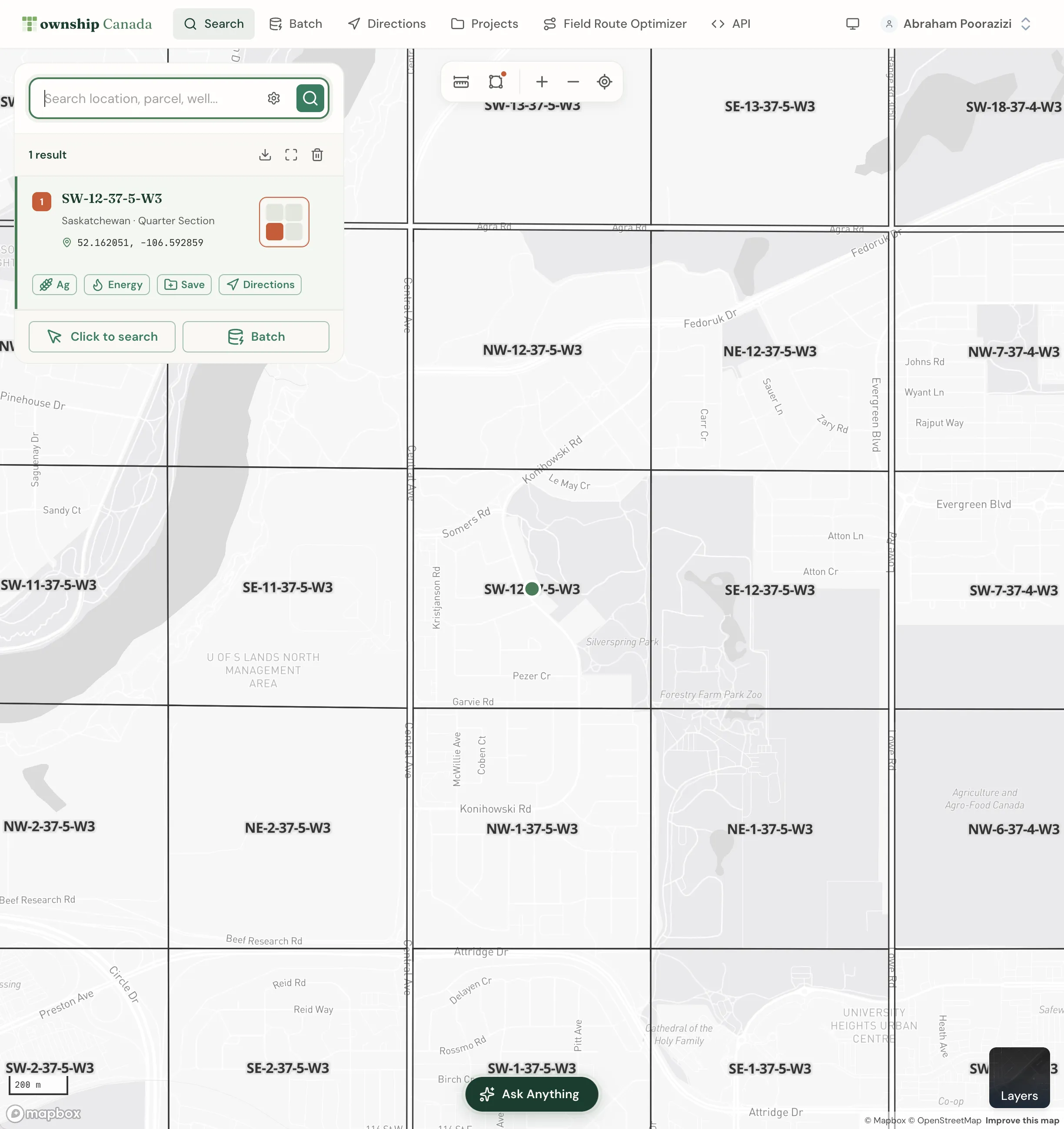
The Township Canada API returns GeoJSON directly from its search and boundary endpoints, which pairs cleanly with the google.maps.Data layer - no coordinate parsing or projection math required on your end.
Prerequisites
- A Township Canada API key - get one from the API page
- A Google Maps JavaScript API key with the Maps and Places libraries enabled
- Basic familiarity with HTML and JavaScript
No build tools are needed. The full working example at the bottom of this guide runs from a single HTML file.
Step 1: Load Google Maps JavaScript API
Add the script tag to your HTML <head>, replacing YOUR_GMAPS_KEY with your Google Maps API key:
<script
  async
  src="https://maps.googleapis.com/maps/api/js?key=YOUR_GMAPS_KEY&callback=initMap"
></script>
Initialize the map centered on Alberta for a reasonable default starting point:
let map;

function initMap() {
  map = new google.maps.Map(document.getElementById("map"), {
    center: { lat: 53.5, lng: -113.5 },
    zoom: 10
  });
}
Step 2: Search and Place Markers
The search endpoint returns a FeatureCollection with two features: a MultiPolygon for the boundary and a Point for the centroid. To drop a marker, extract the centroid Point feature from the response:
async function searchLocation(query) {
  const response = await fetch(
    `https://developer.townshipcanada.com/search/legal-location?location=${encodeURIComponent(query)}`,
    {
      headers: { "X-API-Key": "YOUR_API_KEY" }
    }
  );

  const data = await response.json();

  // Extract the centroid point feature
  const centroid = data.features.find((f) => f.properties.shape === "centroid");

  if (!centroid) return null;

  const [lng, lat] = centroid.geometry.coordinates;

  const marker = new google.maps.Marker({
    position: { lat, lng },
    map,
    title: centroid.properties.legal_location
  });

  map.panTo({ lat, lng });
  map.setZoom(13);

  return { marker, data };
}
Call searchLocation("NW-25-24-1-W5") and you'll see a pin land on the northwest quarter of Section 25, Township 24, Range 1, West of the 5th Meridian in Alberta.
Step 3: Draw Boundary Polygons
Google Maps supports GeoJSON natively through google.maps.Data.addGeoJson(). The search endpoint already returns the polygon alongside the centroid, so you can reuse the same response:
function drawBoundary(geojson) {
  // Clear any previous boundaries
  map.data.forEach((feature) => map.data.remove(feature));

  // Add the GeoJSON FeatureCollection directly
  map.data.addGeoJson(geojson);

  // Style the polygon
  map.data.setStyle({
    fillColor: "#1a6b3c",
    fillOpacity: 0.2,
    strokeColor: "#1a6b3c",
    strokeWeight: 2
  });
}
If you want the polygon without placing a centroid marker - for example, to highlight multiple sections at once - call the same /search/legal-location endpoint and use only the MultiPolygon feature from the response:
async function fetchBoundary(query) {
  const response = await fetch(
    `https://developer.townshipcanada.com/search/legal-location?location=${encodeURIComponent(query)}`,
    {
      headers: { "X-API-Key": "YOUR_API_KEY" }
    }
  );
  const data = await response.json();
  // Return only the polygon feature
  return data.features.find((f) => f.geometry.type === "MultiPolygon") || null;
}
Pass the returned feature directly to map.data.addGeoJson().
Step 4: Custom InfoWindows with LLD Details
An InfoWindow tied to the marker gives users the section breakdown at a glance. Pull the property details from the polygon feature's properties object:
function attachInfoWindow(marker, geojson) {
  const polygon = geojson.features.find((f) => f.geometry.type === "MultiPolygon");

  if (!polygon) return;

  const p = polygon.properties;

  const content = `
    <div style="font-family: sans-serif; padding: 4px 8px;">
      <strong>${p.legal_location}</strong><br>
      Survey system: ${p.survey_system}<br>
      Unit: ${p.unit}<br>
      Province: ${p.province}
    </div>
  `;

  const infoWindow = new google.maps.InfoWindow({ content });

  marker.addListener("click", () => {
    infoWindow.open(map, marker);
  });
}
Step 5: Autocomplete Search Box
The autocomplete endpoint returns up to 10 matching legal land descriptions (default 3) as the user types. Wire it to an <input> with a simple input event listener and a results dropdown:
const input = document.getElementById("search-input");
const suggestions = document.getElementById("suggestions");

input.addEventListener("input", async () => {
  const query = input.value.trim();
  if (query.length < 3) {
    suggestions.innerHTML = "";
    return;
  }

  const response = await fetch(
    `https://developer.townshipcanada.com/autocomplete/legal-location?location=${encodeURIComponent(query)}&limit=3`,
    {
      headers: { "X-API-Key": "YOUR_API_KEY" }
    }
  );

  const data = await response.json();
  suggestions.innerHTML = "";

  data.features.forEach((feature) => {
    const lld = feature.properties.legal_location;
    const li = document.createElement("li");
    li.textContent = lld;
    li.style.cursor = "pointer";
    li.style.padding = "6px 12px";

    li.addEventListener("click", async () => {
      input.value = lld;
      suggestions.innerHTML = "";

      const { marker, data } = await searchLocation(lld);
      drawBoundary(data);
      attachInfoWindow(marker, data);
    });

    suggestions.appendChild(li);
  });
});
For more on the autocomplete endpoint's parameters and response shape, see the Autocomplete API guide.
Note on vector tiles: Google Maps does not natively support Mapbox Vector Tile (MVT) format, so the Township Canada vector tile endpoint (https://maps.townshipcanada.com/{province}/{layer}/{z}/{x}/{y}.mvt) is not compatible with the Google Maps JavaScript API without a third-party renderer. For server-side or API-driven use cases, stick with the search and boundary endpoints shown above. If you need vector tile support, see the Mapbox integration guide.
Full Working Example
Copy this into a single .html file, replace the two API key placeholders, and open it in a browser:
<!DOCTYPE html>
<html lang="en">
  <head>
    <meta charset="UTF-8" />
    <title>Township Canada + Google Maps</title>
    <style>
      body {
        margin: 0;
        font-family: sans-serif;
      }
      #controls {
        position: absolute;
        top: 10px;
        left: 10px;
        z-index: 5;
        background: white;
        padding: 8px;
        border-radius: 4px;
        box-shadow: 0 2px 6px rgba(0, 0, 0, 0.2);
      }
      #search-input {
        width: 240px;
        padding: 6px 10px;
        font-size: 14px;
        border: 1px solid #ccc;
        border-radius: 4px;
      }
      #suggestions {
        list-style: none;
        margin: 4px 0 0;
        padding: 0;
        background: white;
        border: 1px solid #ccc;
        border-radius: 4px;
        max-height: 160px;
        overflow-y: auto;
      }
      #suggestions li:hover {
        background: #f0f0f0;
      }
      #map {
        width: 100vw;
        height: 100vh;
      }
    </style>
  </head>
  <body>
    <div id="controls">
      <input
        id="search-input"
        type="text"
        placeholder="e.g. NW-25-24-1-W5"
      />
      <ul id="suggestions"></ul>
    </div>
    <div id="map"></div>

    <script>
      const TC_API_KEY = "YOUR_API_KEY";
      let map;

      function initMap() {
        map = new google.maps.Map(document.getElementById("map"), {
          center: { lat: 53.5, lng: -113.5 },
          zoom: 10
        });

        const input = document.getElementById("search-input");
        const suggestions = document.getElementById("suggestions");

        input.addEventListener("input", async () => {
          const query = input.value.trim();
          if (query.length < 3) {
            suggestions.innerHTML = "";
            return;
          }

          const res = await fetch(
            `https://developer.townshipcanada.com/autocomplete/legal-location?location=${encodeURIComponent(query)}&limit=3`,
            { headers: { "X-API-Key": TC_API_KEY } }
          );
          const data = await res.json();
          suggestions.innerHTML = "";

          data.features.forEach((feature) => {
            const lld = feature.properties.legal_location;
            const li = document.createElement("li");
            li.textContent = lld;
            li.style.cursor = "pointer";
            li.style.padding = "6px 12px";
            li.addEventListener("click", async () => {
              input.value = lld;
              suggestions.innerHTML = "";
              await loadLocation(lld);
            });
            suggestions.appendChild(li);
          });
        });
      }

      async function loadLocation(query) {
        const res = await fetch(
          `https://developer.townshipcanada.com/search/legal-location?location=${encodeURIComponent(query)}`,
          { headers: { "X-API-Key": TC_API_KEY } }
        );
        const data = await res.json();

        const centroid = data.features.find((f) => f.properties.shape === "centroid");
        const polygon = data.features.find((f) => f.geometry.type === "MultiPolygon");

        if (!centroid) return;

        const [lng, lat] = centroid.geometry.coordinates;
        map.panTo({ lat, lng });
        map.setZoom(13);

        map.data.forEach((f) => map.data.remove(f));
        map.data.addGeoJson(data);
        map.data.setStyle({
          fillColor: "#1a6b3c",
          fillOpacity: 0.2,
          strokeColor: "#1a6b3c",
          strokeWeight: 2
        });

        const marker = new google.maps.Marker({
          position: { lat, lng },
          map,
          title: centroid.properties.legal_location
        });

        if (polygon) {
          const p = polygon.properties;
          const infoWindow = new google.maps.InfoWindow({
            content: `<div style="padding:4px 8px"><strong>${p.legal_location}</strong><br>Survey system: ${p.survey_system} | Unit: ${p.unit}<br>Province: ${p.province}</div>`
          });
          marker.addListener("click", () => infoWindow.open(map, marker));
        }
      }
    </script>

    <script
      async
      src="https://maps.googleapis.com/maps/api/js?key=YOUR_GMAPS_KEY&callback=initMap"
    ></script>
  </body>
</html>
Next Steps
- Read the full API reference for query parameters, error codes, and rate limits
- Review getting started with the Township Canada API if you haven't set up authentication yet
- Learn about the batch API to geocode lists of legal land descriptions in one request
Related Guides
Related Guides
Legal Land Description API Integration Guide
Integrate legal land description APIs into your applications. Convert LLDs to coordinates, add autocomplete search, process batch records, and display DLS/NTS grid maps. REST API with JSON responses.
Managing API Keys for Development, Staging, and Production
Create and manage multiple Township Canada API keys for different environments. Naming conventions, key rotation, environment variables, and CI/CD setup.
API Troubleshooting & Best Practices
Fix common Township Canada API errors including Forbidden responses, CORS issues, rate limiting, and empty results. Includes debugging tips and integration patterns.