Managing API Keys for Development, Staging, and Production
Create and manage multiple Township Canada API keys for different environments. Naming conventions, key rotation, environment variables, and CI/CD setup.
Most API integrations span multiple environments-local development, a staging server, and production. Using a single API key across all three creates problems: one accidental revocation takes everything down, you can't track which environment is generating traffic, and debugging becomes harder when all requests look identical in the logs.
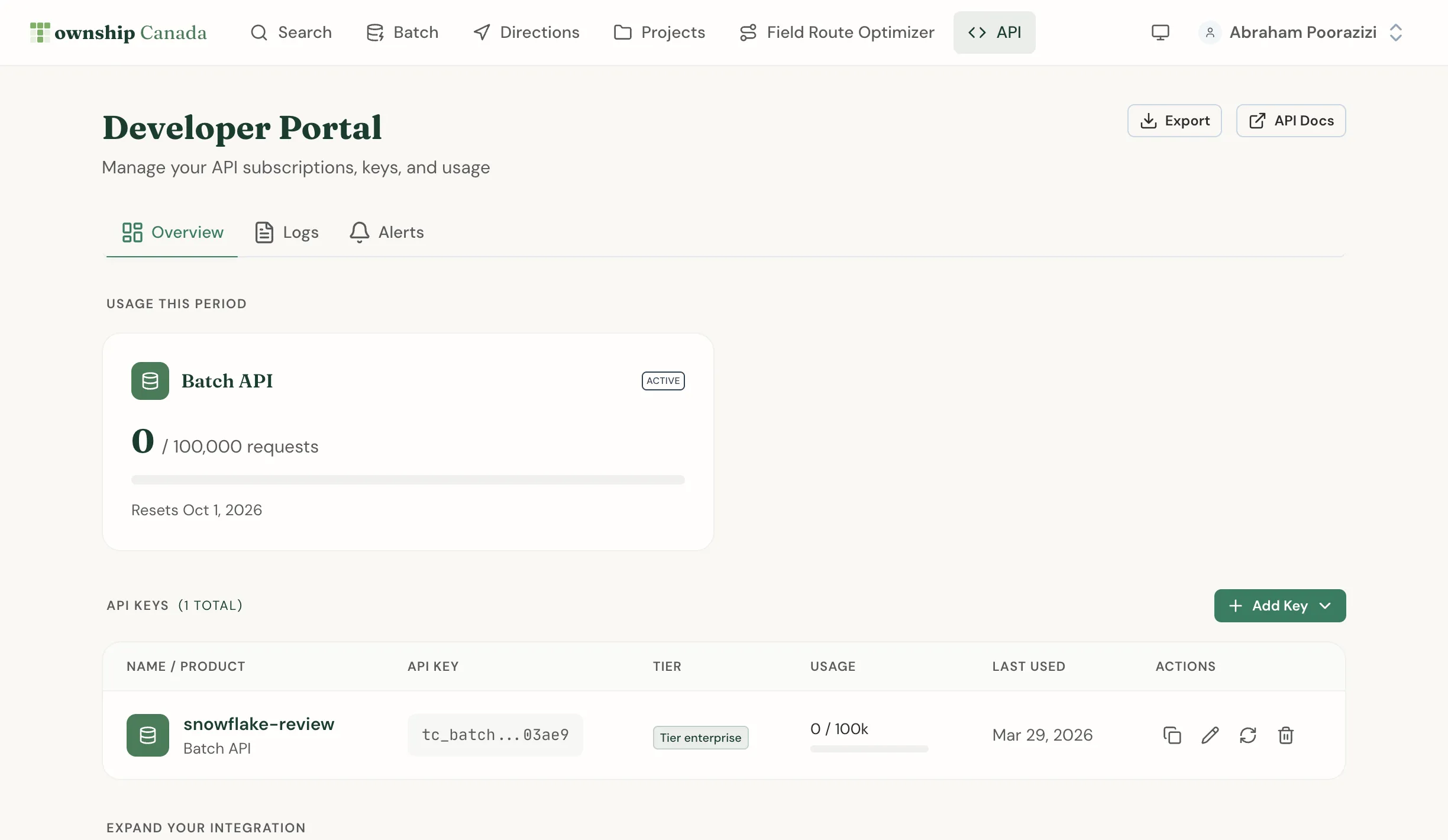
Township Canada lets you create unlimited API keys on paid plans. The recommended approach is one key per environment, per project.
Creating API keys
API keys are managed from the Developer Portal. To create a new key:
- Go to API in the main navigation
- Click + Add Key
- Enter a descriptive name (see naming conventions below)
- Click Create
- Copy the key immediately - it will not be shown again
Each key displays its name, creation date, and last-used timestamp. Keys can be revoked individually without affecting any other key on your account.
Naming conventions
A consistent naming pattern makes it easy to identify keys at a glance, especially once you have several. Use the format:
{Environment} - {Project} {Version}
Examples:
| Key name | What it's for |
|---|---|
Production - Well Mapper v2 | Live production traffic for version 2 of your app |
Staging - Well Mapper v2 | Pre-release testing against real data |
Dev - Local Testing | Your local development environment |
CI - Well Mapper | Automated tests in your CI pipeline |
Dev - Jane Smith | A team member's personal development key |
Avoid generic names like "API Key 1" or "Test Key". When you're reviewing keys six months from now, a descriptive name tells you exactly what to keep and what to revoke.
Environment variable setup
Never hardcode an API key in your source code. Use environment variables so keys stay out of version control.
Node.js
Create a .env file in your project root:
TOWNSHIP_CANADA_API_KEY=tc_live_your_key_here
Load and use it in your application:
// Make sure dotenv is loaded early (e.g., in your entry file)
require("dotenv").config();

const response = await fetch(
  "https://developer.townshipcanada.com/search/legal-location?location=NW-36-42-3-W5",
  {
    headers: {
      "X-API-Key": process.env.TOWNSHIP_CANADA_API_KEY
    }
  }
);
For the Maps API tiles, pass the key as a query parameter instead:
const tileUrl = `https://maps.townshipcanada.com/ab/twp/{z}/{x}/{y}.mvt?api_key=${process.env.TOWNSHIP_CANADA_API_KEY}`;
Python
Create a .env file:
TOWNSHIP_CANADA_API_KEY=tc_live_your_key_here
Load it using python-dotenv:
import os
from dotenv import load_dotenv
import requests

load_dotenv()

api_key = os.environ.get('TOWNSHIP_CANADA_API_KEY')

response = requests.get(
    'https://developer.townshipcanada.com/search/legal-location',
    headers={'X-API-Key': api_key},
    params={'location': '10-15-23-4-W4'}
)
Keeping keys out of git
Add .env to your .gitignore file:
# .gitignore
.env
.env.local
.env.*.local
Commit a .env.example file with placeholder values instead. Other developers on your team know what variables to set without seeing real credentials:
# .env.example
TOWNSHIP_CANADA_API_KEY=your_api_key_here
Key rotation without downtime
Rotating a production key requires a brief overlap period where both the old and new key are valid. Follow this sequence:
- Create the new key in the Developer Portal with the same name (add "v2" or today's date to distinguish it)
- Update your deployment - set the new key value in your environment variables or secrets manager
- Deploy and verify - confirm requests are succeeding with the new key in your application logs
- Revoke the old key - only after confirming the new key is working
Never revoke the old key before confirming the new one works. A failed deploy with no fallback means downtime.
CI/CD secrets
Automated pipelines need API keys without human involvement. Store keys in your CI provider's secrets store, not in configuration files.
GitHub Actions
Add your API key as a repository secret:
- Go to Settings → Secrets and variables → Actions in your GitHub repository
- Click New repository secret
- Name it
TOWNSHIP_CANADA_API_KEYand paste your CI key value - Click Add secret
Reference it in your workflow file:
# .github/workflows/test.yml
jobs:
  test:
    runs-on: ubuntu-latest
    steps:
      - uses: actions/checkout@v4
      - name: Run integration tests
        env:
          TOWNSHIP_CANADA_API_KEY: ${{ secrets.TOWNSHIP_CANADA_API_KEY }}
        run: npm test
The same pattern applies to other CI platforms - GitLab CI uses project variables, Bitbucket Pipelines uses repository variables, and CircleCI uses environment variables in project settings. The key principle is the same: the secret is stored in the platform, referenced by name in the config file, and never written to disk or logs.
Team key management
On the Business plan, account admins can view all API keys created by team members - including the key name, creator, creation date, and last-used timestamp. This makes it possible to audit which keys are active, identify keys that haven't been used recently, and revoke credentials when a team member leaves.
Individual developers see only their own keys. Admins see keys across the entire team.
If your team uses a shared integration (for example, a company-wide internal tool), create that key under an admin account rather than a personal one. That way the key doesn't become inaccessible if the original creator's account is deactivated.
Security practices
A few habits that prevent the most common problems:
Don't commit keys. The .gitignore pattern above covers most cases. For extra protection, consider a tool like git-secrets that scans commits for credential patterns before they're pushed.
Use separate keys for separate projects. If Project A's key is ever compromised, you revoke that key without touching Project B. It also makes usage monitoring cleaner - each key's activity in the logs maps to exactly one project.
Rotate keys periodically. There's no hard rule on frequency, but a yearly rotation for production keys is a reasonable baseline. After a team member departure, rotate any keys they had access to.
Delete unused keys. Old keys from completed projects or former team members are attack surface with no benefit. If a key hasn't been used in 90 days and you don't recognize its purpose, revoke it.
Treat keys like passwords. Don't paste them into chat messages, emails, or support tickets. If you need to share a key temporarily, do it through a password manager or secrets vault.
Related guides
- API Integration - Get started with the Township Canada API
- Batch API Guide - Process multiple records in a single request
- Autocomplete API Guide - Add LLD search suggestions to your app
- Account Management - Manage subscriptions and billing
- Pricing - API plan tiers and request quotas
Related Guides
Legal Land Description API Integration Guide
Integrate legal land description APIs into your applications. Convert LLDs to coordinates, add autocomplete search, process batch records, and display DLS/NTS grid maps. REST API with JSON responses.
API Troubleshooting & Best Practices
Fix common Township Canada API errors including Forbidden responses, CORS issues, rate limiting, and empty results. Includes debugging tips and integration patterns.
Building Autocomplete Search with the Township Canada API
Build a search-as-you-type component for legal land descriptions using the Township Canada Autocomplete API. Includes debouncing, proximity biasing, and examples in vanilla JS and React.