Building Autocomplete Search with the Township Canada API
Build a search-as-you-type component for legal land descriptions using the Township Canada Autocomplete API. Includes debouncing, proximity biasing, and examples in vanilla JS and React.
What You'll Build
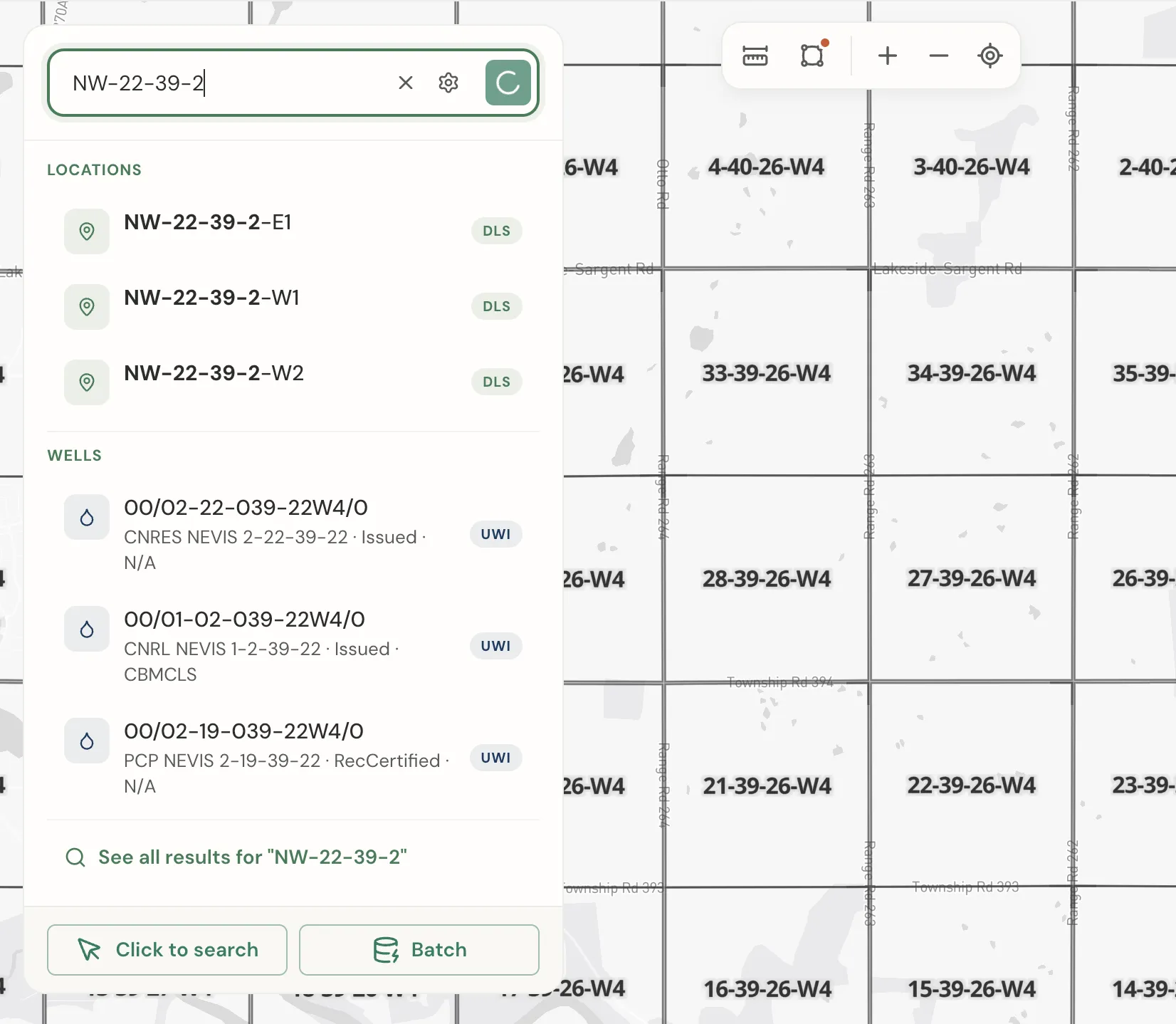
A search-as-you-type input that queries the Township Canada Autocomplete API as users type, shows a dropdown of matching legal land descriptions, and lets users select a result with mouse or keyboard. By the end you'll have a working component in vanilla JS and React.
Prerequisites
- A Township Canada API key - get one from the API page
- Basic familiarity with fetch and async/await
- For the React example: a React project (Next.js, Vite, or Create React App)
The Autocomplete Endpoint
GET https://developer.townshipcanada.com/autocomplete/legal-location
Headers:
X-API-Key: YOUR_API_KEY
Query parameters:
| Parameter | Required | Description |
|---|---|---|
location | Yes | Partial or full legal land description, e.g. NW-2 |
limit | No | Number of results to return. Range: 1–10, default 3 |
proximity | No | Bias results toward a point: lng,lat |
Example request:
GET /autocomplete/legal-location?location=NW-25-24-1&limit=3
Response format:
{
  "type": "FeatureCollection",
  "features": [
    {
      "type": "Feature",
      "geometry": {
        "type": "Point",
        "coordinates": [-114.01924, 51.077932]
      },
      "properties": {
        "legal_location": "NW-25-24-1-W5",
        "search_term": "NW-25-24-1",
        "survey_system": "DLS",
        "unit": "Quarter Section"
      }
    }
  ]
}
Each feature's display label is at feature.properties.legal_location. Coordinates are at feature.geometry.coordinates as [longitude, latitude].
Step 1: Debouncing
The autocomplete endpoint is fast, but firing a request on every keystroke wastes API quota and creates a choppy experience. A 300ms debounce is the right balance - responsive enough that users don't notice the delay, but conservative enough to batch rapid keystrokes into a single request.
function debounce(fn, delay) {
  let timer;
  return function (...args) {
    clearTimeout(timer);
    timer = setTimeout(() => fn.apply(this, args), delay);
  };
}
Wrap your fetch call with this before attaching it to the input event.
Step 2: Cancelling In-Flight Requests
When a user types quickly, earlier requests may return after newer ones. Without cancellation, stale results can overwrite fresh ones. Use AbortController to cancel the previous request before issuing a new one:
let controller = null;

async function fetchSuggestions(query) {
  if (controller) controller.abort();
  controller = new AbortController();

  const res = await fetch(
    `https://developer.townshipcanada.com/autocomplete/legal-location?location=${encodeURIComponent(query)}&limit=3`,
    {
      headers: { "X-API-Key": "YOUR_API_KEY" },
      signal: controller.signal
    }
  );

  const data = await res.json();
  return data.features;
}
Catch AbortError separately so it doesn't surface as a user-visible error - it's expected behaviour.
Step 3: Proximity Biasing
If your app has a map, pass its current center to the proximity parameter. The API will score results closer to that point higher. This is especially useful for partial queries like NW-2 that match dozens of locations across the prairies.
const center = map.getCenter(); // { lng, lat } from your map library
const url =
  `https://developer.townshipcanada.com/autocomplete/legal-location` +
  `?location=${encodeURIComponent(query)}` +
  `&limit=3` +
  `&proximity=${center.lng},${center.lat}`;
Without proximity, a search for NW-2 returns the first five alphabetical matches. With proximity set to central Alberta, it returns the five closest matches to where the user is looking. See the Mapbox integration guide for how to wire this up with a live map.
Step 4: Dropdown UX and Keyboard Navigation
A good autocomplete dropdown handles three interaction modes:
- Mouse: hover highlights a suggestion, click selects it
- Keyboard: arrow keys move the highlighted index, Enter selects, Escape closes
- Outside click: clicking anywhere outside the input or dropdown closes it
Track highlightedIndex as an integer, reset to -1 when the list updates.
Vanilla JS Example
A complete standalone implementation - no build step required.
<!DOCTYPE html>
<html lang="en">
  <head>
    <meta charset="UTF-8" />
    <title>Township Autocomplete</title>
    <style>
      .autocomplete-wrapper {
        position: relative;
        width: 360px;
      }
      input {
        width: 100%;
        padding: 8px 12px;
        font-size: 16px;
        box-sizing: border-box;
      }
      .suggestions {
        position: absolute;
        top: 100%;
        left: 0;
        right: 0;
        background: #fff;
        border: 1px solid #ddd;
        border-top: none;
        list-style: none;
        margin: 0;
        padding: 0;
        z-index: 100;
      }
      .suggestions li {
        padding: 10px 12px;
        cursor: pointer;
        font-size: 15px;
      }
      .suggestions li.highlighted {
        background: #f0f7f4;
      }
      .suggestions li.no-results {
        color: #888;
        cursor: default;
      }
    </style>
  </head>
  <body>
    <div class="autocomplete-wrapper">
      <input
        id="lld-input"
        type="text"
        placeholder="e.g. NW-25-24-1-W5"
        autocomplete="off"
      />
      <ul
        id="suggestions"
        class="suggestions"
        hidden
      ></ul>
    </div>

    <script>
      const API_KEY = "YOUR_API_KEY";
      const input = document.getElementById("lld-input");
      const list = document.getElementById("suggestions");
      let features = [];
      let highlightedIndex = -1;
      let controller = null;

      function debounce(fn, delay) {
        let timer;
        return function (...args) {
          clearTimeout(timer);
          timer = setTimeout(() => fn.apply(this, args), delay);
        };
      }

      async function fetchSuggestions(query) {
        if (controller) controller.abort();
        controller = new AbortController();

        try {
          const res = await fetch(
            `https://developer.townshipcanada.com/autocomplete/legal-location` +
              `?location=${encodeURIComponent(query)}&limit=3`,
            {
              headers: { "X-API-Key": API_KEY },
              signal: controller.signal
            }
          );
          const data = await res.json();
          return data.features || [];
        } catch (err) {
          if (err.name === "AbortError") return null;
          console.error("Autocomplete error:", err);
          return [];
        }
      }

      function renderSuggestions() {
        list.innerHTML = "";
        highlightedIndex = -1;

        if (features.length === 0) {
          const li = document.createElement("li");
          li.className = "no-results";
          li.textContent = "No results";
          list.appendChild(li);
        } else {
          features.forEach((feature, i) => {
            const li = document.createElement("li");
            li.textContent = feature.properties.legal_location;
            li.addEventListener("mouseenter", () => highlight(i));
            li.addEventListener("click", () => selectFeature(feature));
            list.appendChild(li);
          });
        }

        list.hidden = false;
      }

      function highlight(index) {
        const items = list.querySelectorAll("li:not(.no-results)");
        items.forEach((el) => el.classList.remove("highlighted"));
        highlightedIndex = index;
        if (index >= 0 && index < items.length) {
          items[index].classList.add("highlighted");
        }
      }

      function selectFeature(feature) {
        input.value = feature.properties.legal_location;
        const [lng, lat] = feature.geometry.coordinates;
        list.hidden = true;
        features = [];
        console.log("Selected:", feature.properties.legal_location, { lng, lat });
        // → fly your map here, or dispatch an event
      }

      const debouncedFetch = debounce(async (query) => {
        if (query.length < 2) {
          list.hidden = true;
          return;
        }
        const results = await fetchSuggestions(query);
        if (results === null) return; // aborted
        features = results;
        renderSuggestions();
      }, 300);

      input.addEventListener("input", () => debouncedFetch(input.value.trim()));

      input.addEventListener("keydown", (e) => {
        const items = list.querySelectorAll("li:not(.no-results)");
        if (e.key === "ArrowDown") {
          e.preventDefault();
          highlight(Math.min(highlightedIndex + 1, items.length - 1));
        } else if (e.key === "ArrowUp") {
          e.preventDefault();
          highlight(Math.max(highlightedIndex - 1, 0));
        } else if (e.key === "Enter" && highlightedIndex >= 0) {
          e.preventDefault();
          selectFeature(features[highlightedIndex]);
        } else if (e.key === "Escape") {
          list.hidden = true;
        }
      });

      document.addEventListener("click", (e) => {
        if (!e.target.closest(".autocomplete-wrapper")) {
          list.hidden = true;
        }
      });
    </script>
  </body>
</html>
React Example
A custom hook that encapsulates the autocomplete logic, paired with a component.
hooks/useAutocomplete.js
import { useState, useRef, useCallback, useEffect } from "react";

export function useAutocomplete(apiKey) {
  const [query, setQuery] = useState("");
  const [suggestions, setSuggestions] = useState([]);
  const [highlightedIndex, setHighlightedIndex] = useState(-1);
  const [isOpen, setIsOpen] = useState(false);

  const controllerRef = useRef(null);
  const timerRef = useRef(null);

  const fetchSuggestions = useCallback(
    async (value, proximity) => {
      if (controllerRef.current) controllerRef.current.abort();
      controllerRef.current = new AbortController();

      let url =
        `https://developer.townshipcanada.com/autocomplete/legal-location` +
        `?location=${encodeURIComponent(value)}&limit=3`;

      if (proximity) {
        url += `&proximity=${proximity.lng},${proximity.lat}`;
      }

      try {
        const res = await fetch(url, {
          headers: { "X-API-Key": apiKey },
          signal: controllerRef.current.signal
        });
        const data = await res.json();
        const features = data.features || [];
        setSuggestions(features);
        setHighlightedIndex(-1);
        setIsOpen(features.length > 0 || value.length >= 2);
      } catch (err) {
        if (err.name !== "AbortError") {
          console.error("Autocomplete error:", err);
          setSuggestions([]);
        }
      }
    },
    [apiKey]
  );

  useEffect(() => {
    clearTimeout(timerRef.current);
    if (query.trim().length < 2) {
      setSuggestions([]);
      setIsOpen(false);
      return;
    }
    timerRef.current = setTimeout(() => fetchSuggestions(query.trim()), 300);
    return () => clearTimeout(timerRef.current);
  }, [query, fetchSuggestions]);

  const moveDown = useCallback(() => {
    setHighlightedIndex((i) => Math.min(i + 1, suggestions.length - 1));
  }, [suggestions.length]);

  const moveUp = useCallback(() => {
    setHighlightedIndex((i) => Math.max(i - 1, 0));
  }, []);

  const close = useCallback(() => {
    setIsOpen(false);
    setHighlightedIndex(-1);
  }, []);

  return {
    query,
    setQuery,
    suggestions,
    highlightedIndex,
    setHighlightedIndex,
    isOpen,
    moveDown,
    moveUp,
    close
  };
}
components/LldAutocomplete.jsx
import { useRef, useEffect } from "react";
import { useAutocomplete } from "../hooks/useAutocomplete";

export function LldAutocomplete({ apiKey, onSelect }) {
  const wrapperRef = useRef(null);
  const ac = useAutocomplete(apiKey);

  function selectFeature(feature) {
    ac.setQuery(feature.properties.legal_location);
    const [lng, lat] = feature.geometry.coordinates;
    onSelect({ label: feature.properties.legal_location, lng, lat });
    ac.close();
  }

  function handleKeyDown(e) {
    if (e.key === "ArrowDown") {
      e.preventDefault();
      ac.moveDown();
    } else if (e.key === "ArrowUp") {
      e.preventDefault();
      ac.moveUp();
    } else if (e.key === "Enter" && ac.highlightedIndex >= 0) {
      e.preventDefault();
      selectFeature(ac.suggestions[ac.highlightedIndex]);
    } else if (e.key === "Escape") {
      ac.close();
    }
  }

  useEffect(() => {
    function handleClick(e) {
      if (wrapperRef.current && !wrapperRef.current.contains(e.target)) {
        ac.close();
      }
    }
    document.addEventListener("click", handleClick);
    return () => document.removeEventListener("click", handleClick);
  }, [ac.close]);

  return (
    <div
      ref={wrapperRef}
      className="autocomplete-wrapper"
    >
      <input
        type="text"
        value={ac.query}
        onChange={(e) => ac.setQuery(e.target.value)}
        onKeyDown={handleKeyDown}
        placeholder="e.g. NW-25-24-1-W5"
        autoComplete="off"
      />

      {ac.isOpen && (
        <ul className="suggestions">
          {ac.suggestions.length === 0 ? (
            <li className="no-results">No results</li>
          ) : (
            ac.suggestions.map((feature, i) => (
              <li
                key={feature.properties.legal_location}
                className={i === ac.highlightedIndex ? "highlighted" : ""}
                onMouseEnter={() => ac.setHighlightedIndex(i)}
                onClick={() => selectFeature(feature)}
              >
                {feature.properties.legal_location}
              </li>
            ))
          )}
        </ul>
      )}
    </div>
  );
}
Usage in a parent component:
<LldAutocomplete
  apiKey="YOUR_API_KEY"
  onSelect={({ label, lng, lat }) => flyToLocation(lng, lat)}
/>
Next Steps
- Fly to the selected location: pass the
[lng, lat]coordinates to your map's fly-to method - see the Mapbox integration guide for a complete walkthrough. - Geocode a full LLD: once a user selects a result, use the API reference to fetch the full boundary polygon for that location.
- Batch lookups: if you need to geocode multiple locations at once, the batch API guide covers CSV uploads and programmatic batch requests.
- API key setup and rate limits: covered in the API integration guide.
Related guides: API Integration · Mapbox Integration · Batch API Guide · About Township Canada
Related Guides
Legal Land Description API Integration Guide
Integrate legal land description APIs into your applications. Convert LLDs to coordinates, add autocomplete search, process batch records, and display DLS/NTS grid maps. REST API with JSON responses.
Managing API Keys for Development, Staging, and Production
Create and manage multiple Township Canada API keys for different environments. Naming conventions, key rotation, environment variables, and CI/CD setup.
API Troubleshooting & Best Practices
Fix common Township Canada API errors including Forbidden responses, CORS issues, rate limiting, and empty results. Includes debugging tips and integration patterns.