By Township Canada
Plan Multi-Stop Field Routes with Township Canada
Add stops using legal land descriptions, optimize driving order, and get turn-by-turn directions across rural Alberta, Saskatchewan, and Manitoba.
A wellsite inspector in central Alberta has 12 locations to visit today. They're spread across four townships west of Rocky Mountain House, and the inspector needs to hit every one before sundown. The locations are listed as LSDs on a work order: 06-32-048-07W5, 14-27-048-05W5, 03-33-047-06W5, and nine more. The question isn't where these locations are - it's what order to visit them in, and which rural roads connect them.
The route planner on Township Canada answers both questions.
How It Works
Open the route planner and add stops. Each stop can be entered as a legal land description (DLS, LSD, NTS), GPS coordinates, an address, or a place name. The planner converts each entry to coordinates and places it on the map.
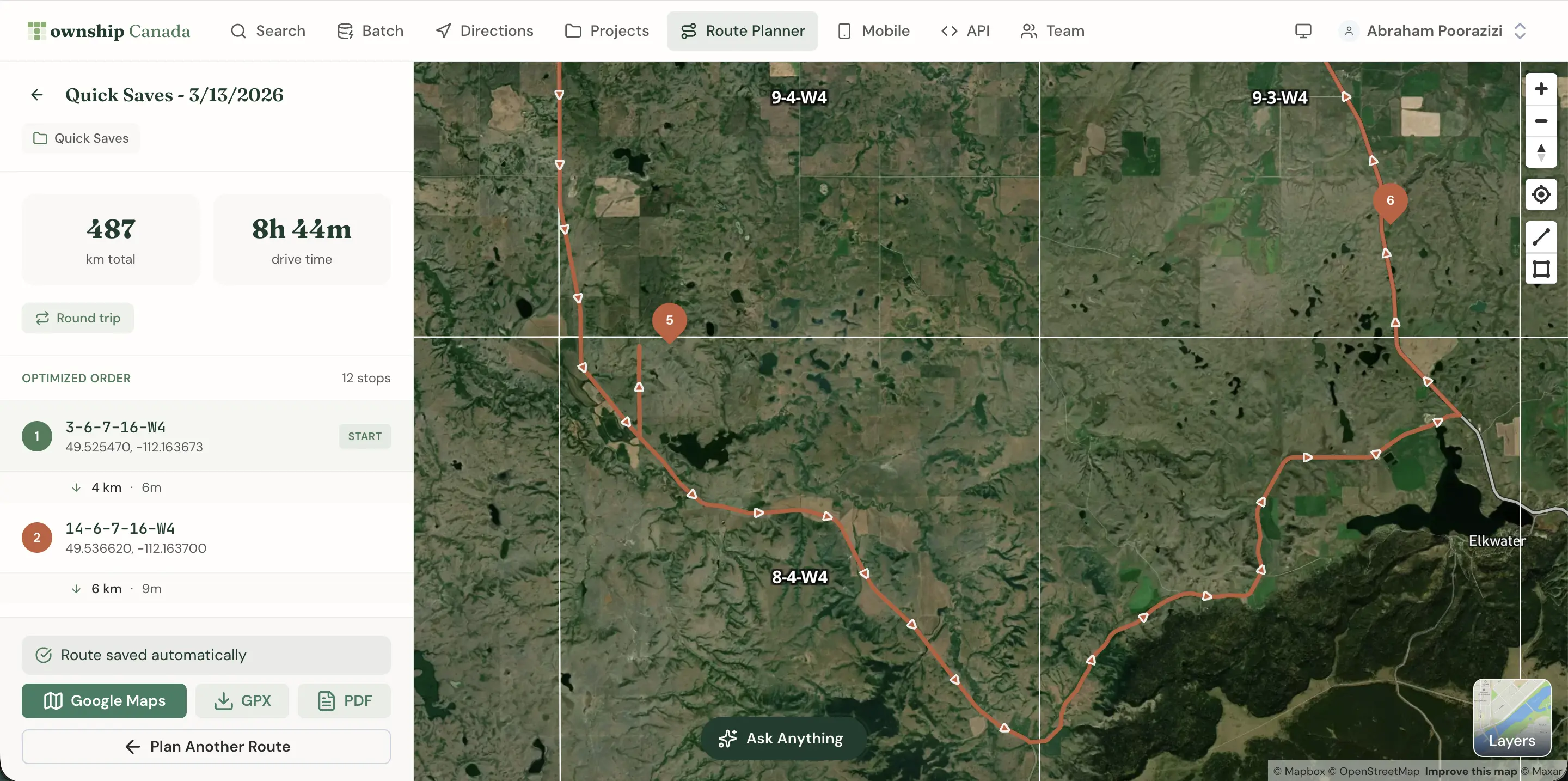
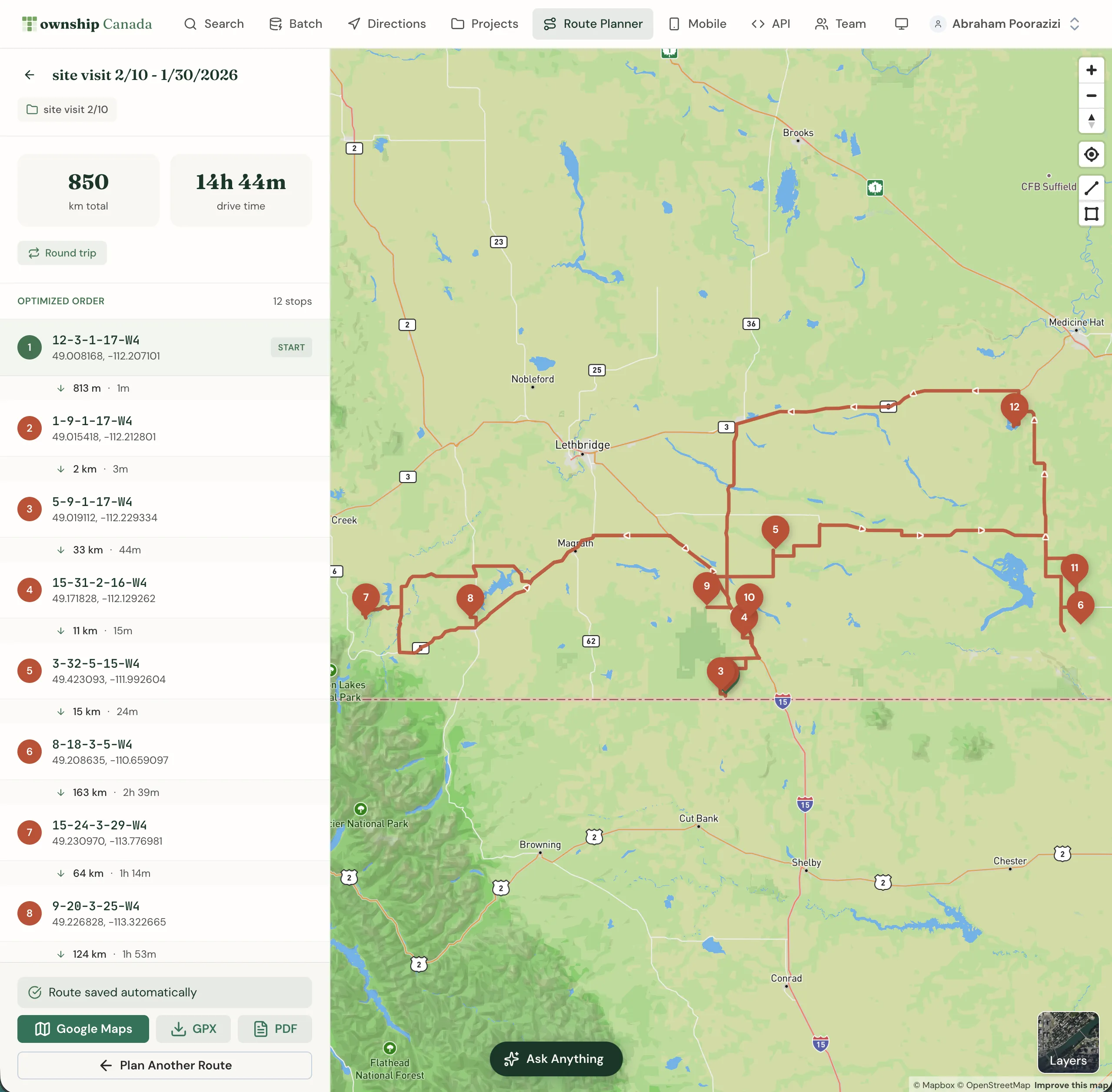
Add all 12 LSDs from the work order. The planner shows them as numbered markers on the survey grid map, connected by the driving route between them. The route follows actual roads - highways, range roads, and township roads - not straight lines.
Optimizing Stop Order
When your stops are scattered across a region, the order you visit them matters. Driving from the northernmost site to the southernmost and back again wastes fuel and daylight. The route planner can reorder your stops to minimize total driving distance or time.
You can also drag stops to reorder them manually if your day has constraints - maybe the first two stops need to happen before noon for a regulatory inspection window, or the last stop is closest to home.
Driving Directions and Time Estimates
Each leg of the route includes turn-by-turn driving directions and estimated travel time. The planner accounts for road types - you'll drive faster on Highway 11 than on Range Road 75 - and gives realistic estimates for rural prairie driving.
The total trip summary shows the full distance, total driving time, and estimated arrival at each stop. This is useful for scheduling field work and knowing whether a 12-stop day is realistic or if you need to split it across two days.
A Practical Example
Say you're planning a day of site inspections in Township 48, Range 5–7, West of the 5th Meridian - an area in the foothills west of Rocky Mountain House, Alberta.
Your work order lists these 6 LSDs:
06-32-048-07W514-27-048-05W503-33-047-06W509-04-049-07W516-21-048-06W501-15-047-05W5
Enter each one into the route planner. The map shows your six stops spread across roughly 30 kilometres of foothills terrain. Without optimization, visiting them in the order listed means doubling back twice, adding 45 minutes of unnecessary driving. The optimizer reorders them into a loop that saves that time and keeps you moving in one direction.

The total optimized route is approximately 85 kilometres with an estimated driving time of 1 hour 40 minutes, plus whatever time you spend at each site.
From Legal Land to Turn-by-Turn
The route planner connects directly to Township Canada's search and directions features. You don't need to convert legal land descriptions to GPS coordinates first, then paste those coordinates into a separate navigation tool. Enter 14-27-048-05W5 as a stop, and the planner handles the conversion, mapping, and routing in one step.
When you're ready to drive, you can hand off the route to Google Maps on your phone for real-time navigation.
Who Uses the Route Planner
- Wellsite inspectors and pipeline operators planning daily field visits across multiple lease locations
- Crop insurance adjusters visiting insured quarter sections during growing season assessments
- Land surveyors planning survey crew deployments to multiple sites in a region
- Real estate agents showing rural properties to clients in a logical driving order
- Environmental field crews collecting samples or conducting site assessments at regulated locations
Getting Started
The route planner is available on Pro and Business plans. Pro includes 10 route optimizations per month; Business includes unlimited. Each optimization supports up to 12 stops (the Mapbox Optimized Trips API limit). Open the route planner, add your stops, and start planning. For full details on navigation features, see the directions guide. Check pricing for plan options.