
By Township Canada
ArcGIS Integration: Search Canadian Legal Land Descriptions Directly in ArcGIS Pro and ArcGIS Online
Township Canada now ships a native ArcGIS Pro toolbox, Experience Builder widget, and Survey123 pipeline for DLS and NTS legal land descriptions.
A GIS analyst at a midstream pipeline company opens ArcGIS Pro, loads a spreadsheet of 50 well licence locations from the AER, and needs every one plotted on a map with parcel boundaries. The locations are all in DLS format - LSD 06-32-048-07W5, NE 14-032-21W4 - the standard notation for well sites across Western Canada. To get them into ArcGIS, the analyst has to leave the GIS environment entirely: copy descriptions into a browser-based converter, wait for results, copy coordinates back, and paste them into a table. Fifty times.
ArcGIS Pro has no native DLS or NTS locator. Version 3.7 ships NATRF2022 datum support but still no native DLS/NTS locator. GIS professionals working with Canadian legal land descriptions have been stuck switching between tools.
Township Canada's new ArcGIS integration changes that. It adds DLS and NTS search directly inside ArcGIS Pro, ArcGIS Online, and Survey123 field workflows - three entry points for the same underlying conversion, each designed for a different part of the GIS workflow.
ArcGIS Pro Toolbox: Search and Batch Convert from the Desktop
The core of the integration is a Python toolbox (TownshipCanada.pyt) that installs as a standard ArcGIS Pro toolbox. It uses only urllib.request - no extra Python dependencies beyond what ships with ArcGIS Pro.
The toolbox includes three geoprocessing tools:
Configure API Key stores your Township Canada API key in the toolbox configuration. You set this once, and all subsequent tools use it automatically.
Search Legal Land Description adds a locator to the ArcGIS Pro Locate pane. Type a DLS quarter section like NW-36-42-3-W5 or an NTS reference like 093P08 into the search bar, and the locator resolves it to a point on the map. The locator supports three methods - geocode (description to coordinates), suggest (autocomplete as you type), and reverse geocode (click a map location to get the legal land description back). It works alongside Esri's default geocoders in the same search bar.
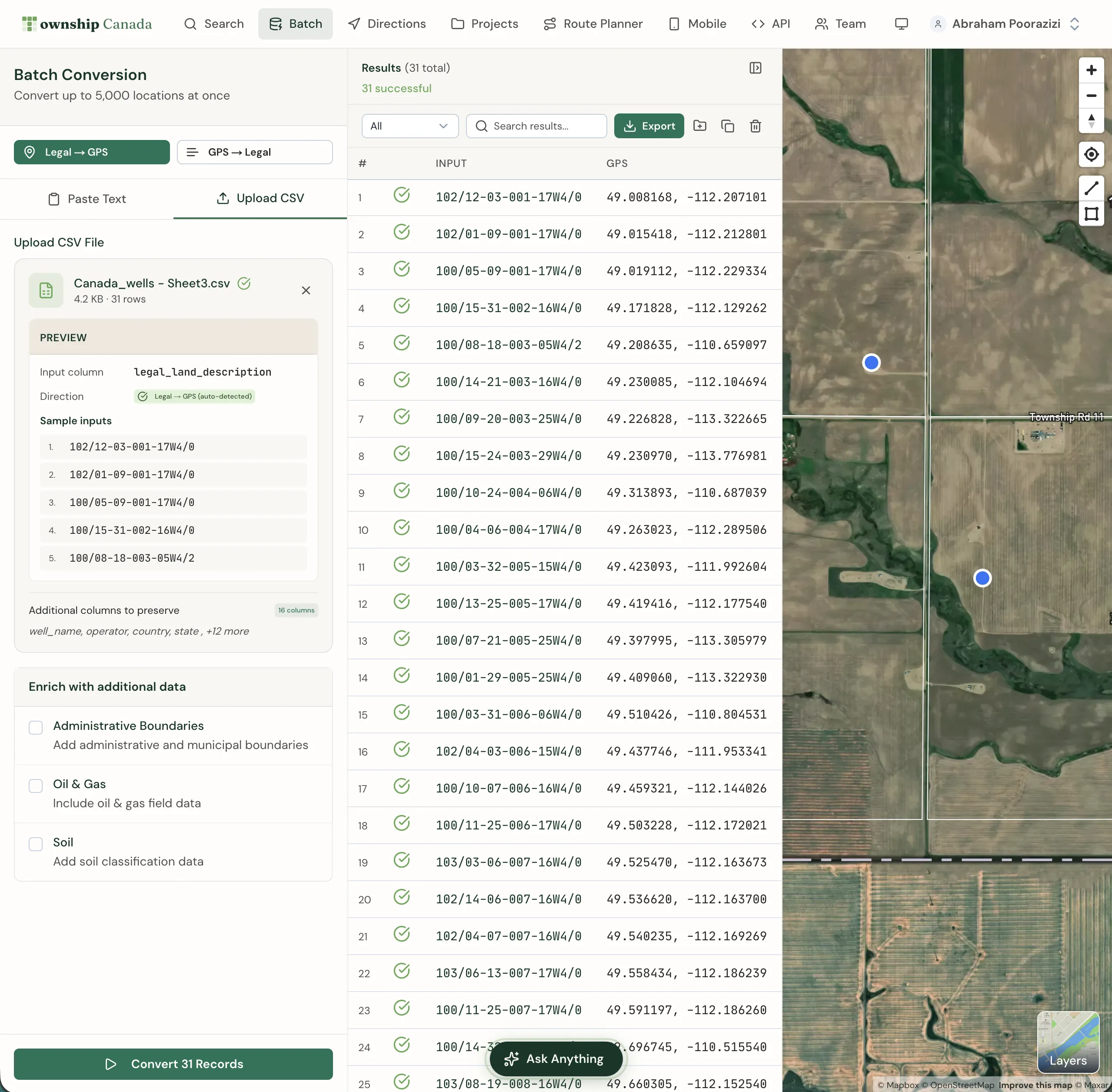
Convert Legal Land Descriptions (batch) takes a table or feature class with a column of legal land descriptions and converts every row. The output is a point feature class with GPS coordinates, province, and survey system attributes for each record. Optionally, the tool also generates a boundary polygon feature class - one polygon per quarter section or LSD - so you get actual parcel geometry, not just centre points.
For the pipeline company analyst with 50 well licence locations, this means: open the batch tool, point it at the spreadsheet column, run, and the result is a point layer and a polygon layer ready for buffer analysis and proximity checks. No tab-switching. No copy-paste. The entire conversion happens inside the ArcGIS Pro Geoprocessing pane.
Installation
- Download
TownshipCanada.pytfrom the ArcGIS Marketplace - In ArcGIS Pro, right-click Toolboxes in the Catalog pane and select Add Toolbox
- Browse to the
.pytfile - the toolbox appears under your project toolboxes - Run the Configure API Key tool and enter your Township Canada API key
The toolbox works with ArcGIS Pro 3.x. API plans start with the Build tier (1,000 requests/month) and go up to Scale (10,000 requests/month) - enough for daily batch conversion jobs. See the API pricing page for the full breakdown.
Experience Builder Widget: Legal Land Description Search on Web Maps
Not every user on a team has ArcGIS Pro installed on their desktop. Field supervisors, land managers, and operations coordinators often access maps through a browser. The Experience Builder widget brings legal land description search to ArcGIS Online web maps without requiring desktop GIS software.
Add the Township Canada widget to any ArcGIS Online Experience Builder application, and it provides:
- Search with autocomplete: Type a DLS or NTS description and see results appear after 300 milliseconds, narrowing with each keystroke. Select a result and the map zooms to the location.
- Boundary polygon display: The widget draws the quarter section or LSD boundary directly on the map - not just a pin, but the actual parcel outline. Useful for confirming a well pad sits within the correct legal subdivision.
- Reverse geocode: Click any point on the map and get the legal land description for that location. A pipeline integrity team checking a right-of-way can tap a location on a satellite basemap and immediately see which quarter section it falls in.
The widget is compatible with ArcGIS Online Experience Builder 1.14 and later. It connects to the same Township Canada API as the Pro toolbox - one API key covers both.
Survey123: Convert Field-Collected Legal Land Descriptions Automatically
Field crews collecting data with Survey123 often enter legal land descriptions by hand - a well site LSD from a licence document, a quarter section from a lease agreement, or an NTS reference from a forestry permit. Those descriptions sit in the feature layer as text strings until someone converts them later.
The Township Canada Survey123 integration automates that conversion using a Make.com webhook pipeline. When a Survey123 submission arrives containing a legal land description, the webhook sends it to the Township Canada API, parses the GPS coordinates from the response, and updates the feature layer with latitude and longitude values - automatically, without manual intervention.
The integration includes a ready-to-use Make.com blueprint and XLSForm examples, so the setup doesn't require custom code. Configure the webhook URL in Make.com, connect your Township Canada API key, and point the output at your ArcGIS Online feature layer. From that point on, every Survey123 submission with a legal land description gets GPS coordinates appended within seconds of submission.
This is particularly valuable for environmental assessment crews, pipeline inspection teams, and well-site consultants who collect location data in the field and need it converted before it reaches the GIS team.
Real-World Example: Processing 50 Well Licence Locations
An oil and gas GIS analyst at a Calgary-based producer receives a regulatory filing package from the AER containing 50 new well licence applications. Each licence lists the well location as an LSD - 06-32-048-07W5, 14-27-048-05W5, and so on. The analyst needs to:
- Plot all 50 locations on a map
- Generate boundary polygons to check for overlap with existing infrastructure
- Export the results as a geodatabase feature class for the engineering team
Before the integration: Export the LSD list to CSV, open the Township Canada web batch converter, upload, download the results as a Shapefile, and import back into ArcGIS Pro. Three tool switches and at least 15 minutes of file management.
With the integration: Open the batch geoprocessing tool in ArcGIS Pro, select the table column containing the LSDs, check the "Generate boundary polygons" option, and run. The output is two feature classes - points and polygons - added directly to the current map. Ready for overlay analysis in under a minute.
The batch tool flags any descriptions that don't resolve (a mistyped township number, a range that doesn't exist), so the analyst can fix those specific rows rather than re-running the entire set. For larger regulatory filings involving hundreds of well locations, the same workflow scales - the Batch API behind the tool handles high-volume requests on the Scale and Enterprise tiers.
Getting Started
The full integration - ArcGIS Pro toolbox, Experience Builder widget, and Survey123 pipeline - is available now.
- Get an API key: Sign up at the API portal. The Build plan (1,000 requests/month) is enough for daily individual lookups; Scale (10,000 requests/month) covers batch operations. See pricing.
- Install the ArcGIS Pro toolbox: Download from the ArcGIS Marketplace, add it to your project, and configure your API key. Your first search runs in under five minutes.
- Add the Experience Builder widget: Available for any ArcGIS Online Experience Builder application (version 1.14+). Drop it into your web map experience and configure the API key.
- Set up Survey123 conversion: Import the Make.com blueprint, connect your API key and feature layer, and test with a sample submission.
For a detailed walkthrough of the ArcGIS Pro toolbox - including installation screenshots, example outputs, and tips for migrating from ArcMap - see the ArcGIS Pro legal land description locator guide. If you're moving from ArcMap to ArcGIS Pro, the ArcMap migration guide covers what changes and how to restore your DLS lookup workflows.
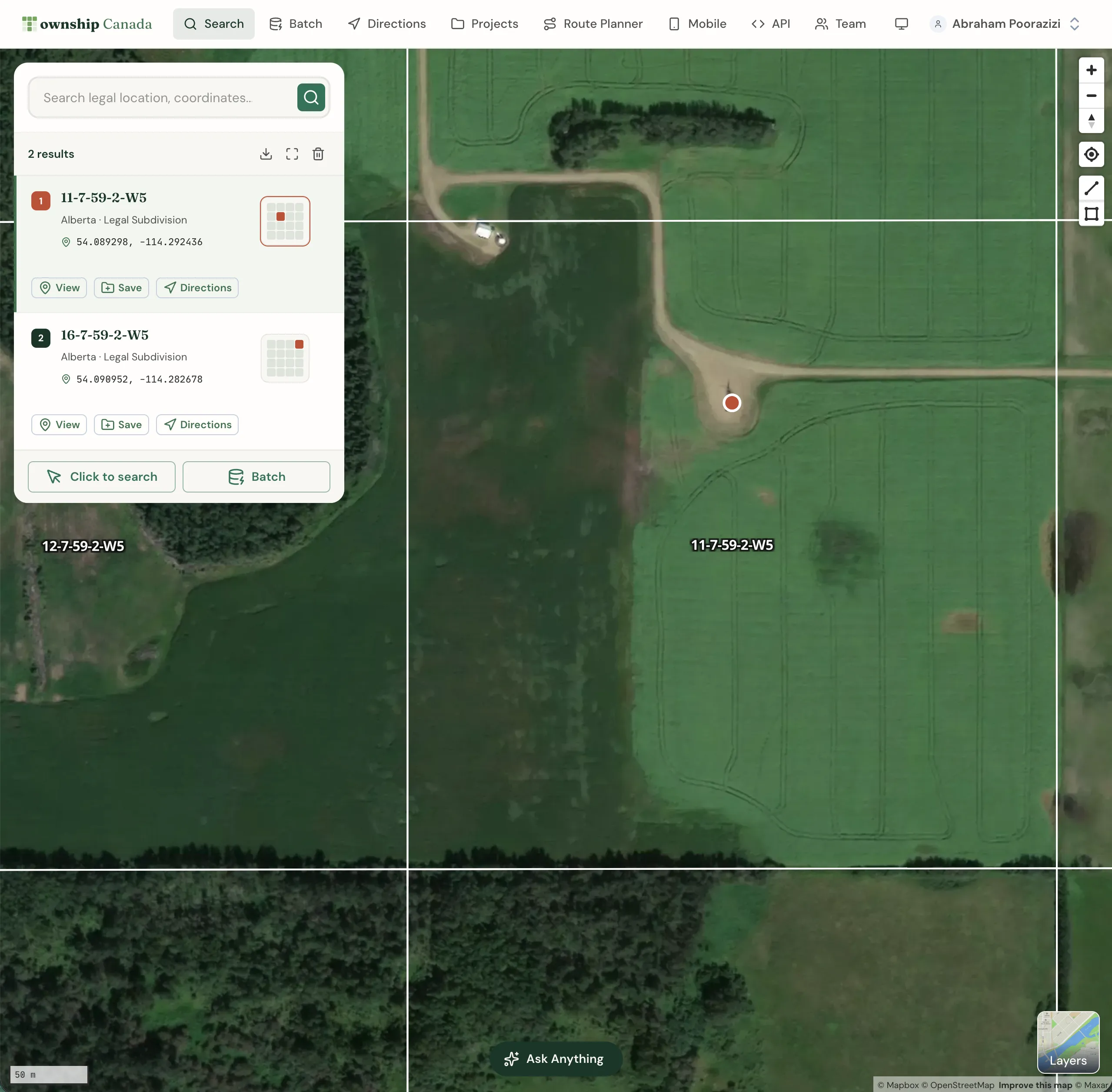
Try a conversion now - enter LSD 06-32-048-07W5 into the Township Canada search bar to see the same result the ArcGIS Pro locator returns: GPS coordinates, parcel boundary, and survey grid context for a 40-acre parcel near Rocky Mountain House, Alberta.