Using Township Canada API with Google Sheets
Convert legal land descriptions to GPS coordinates directly in Google Sheets using Apps Script. Call the Search API and Batch API from your spreadsheet.
What You'll Build
By the end of this guide, your Google Sheets spreadsheet will be able to convert legal land descriptions like NW-25-24-1-W5 to latitude/longitude coordinates in two ways:
- A custom spreadsheet function
=TOWNSHIP_CONVERT(A1)that converts a single LLD on demand - A batch menu command that reads an entire column of LLDs, calls the Batch API in chunks of 100, and writes coordinates back to adjacent columns
Both approaches call the Township Canada API from Apps Script using UrlFetchApp, which runs server-side - no browser CORS issues, no exposed API keys in client code.
Prerequisites
- A Google account with access to Google Sheets
- A Township Canada API key - get one from the API page
- A spreadsheet with legal land descriptions in column A (one per row)
If you haven't set up API authentication yet, read the API integration guide first.
Step 1: Open Apps Script
Open your spreadsheet, then go to Extensions → Apps Script. This opens the script editor in a new tab. Delete the placeholder myFunction() that appears by default - you'll replace it with the code below.
Step 2: Store Your API Key Securely
Never hardcode an API key directly in your script. Apps Script provides a Properties Service for exactly this purpose - values are encrypted at rest and scoped to the script.
In the Apps Script editor, open the left sidebar, click Project Settings (the gear icon), then scroll to Script Properties. Click Add script property, set the name to TOWNSHIP_CANADA_API_KEY, and paste your API key as the value. Save.
You can also set it programmatically by running this function once (then delete it):
function setApiKey() {
  PropertiesService.getScriptProperties().setProperty(
    "TOWNSHIP_CANADA_API_KEY",
    "your_api_key_here"
  );
}
All subsequent functions retrieve the key with PropertiesService.getScriptProperties().getProperty('TOWNSHIP_CANADA_API_KEY') - the key never appears in your script source.
Step 3: Add the Single-Location Function
This custom function calls the Search API for one LLD and returns [lat, lng] as an array, which spills into two adjacent cells.
/**
 * Converts a legal land description to [lat, lng] coordinates.
 * @param {string} lld - Legal land description, e.g. "NW-25-24-1-W5"
 * @return {number[]} Array of [latitude, longitude]
 * @customfunction
 */
function TOWNSHIP_CONVERT(lld) {
  if (!lld || lld.toString().trim() === "") return ["", ""];

  var apiKey = PropertiesService.getScriptProperties().getProperty("TOWNSHIP_CANADA_API_KEY");

  var url =
    "https://developer.townshipcanada.com/search/legal-location" +
    "?location=" +
    encodeURIComponent(lld.toString().trim());

  var options = {
    method: "get",
    headers: { "X-API-Key": apiKey },
    muteHttpExceptions: true
  };

  var response = UrlFetchApp.fetch(url, options);
  var code = response.getResponseCode();

  if (code !== 200) return ["ERROR " + code, ""];

  var data = JSON.parse(response.getContentText());
  var features = data.features || [];

  // Find the centroid Point feature
  var centroid = null;
  for (var i = 0; i < features.length; i++) {
    if (features[i].properties && features[i].properties.shape === "centroid") {
      centroid = features[i];
      break;
    }
  }

  if (!centroid) return ["NOT FOUND", ""];

  // GeoJSON coordinates are [lng, lat] - return as [lat, lng]
  var coords = centroid.geometry.coordinates;
  return [coords[1], coords[0]];
}
The Search API response is a GeoJSON FeatureCollection. Each result includes two features: one with shape: "grid" (the boundary polygon) and one with shape: "centroid" (the point). GeoJSON coordinates are [longitude, latitude], so the function reverses them to the [lat, lng] order most tools expect.
Step 4: Use the Function in Your Spreadsheet
In cell B1, type:
=TOWNSHIP_CONVERT(A1)
Press Enter. The function calls the API, parses the response, and writes the latitude in B1 and longitude in C1. To convert the rest of your list, drag the formula down column B.
Note that custom functions that make network requests count against Apps Script's daily quotas. If you have hundreds of rows, use the batch function in the next step instead.
Step 5: Add the Batch Conversion Function
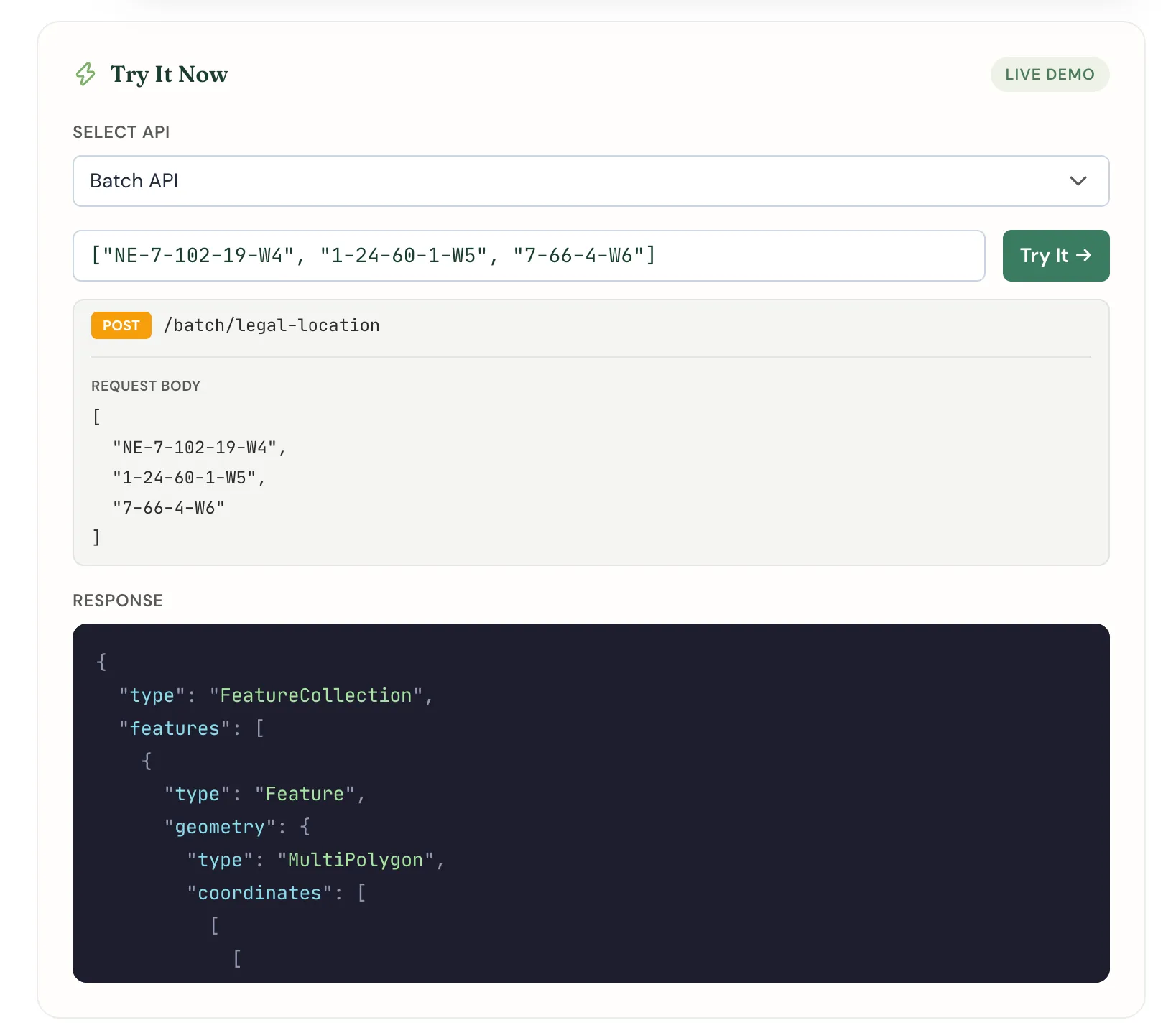
The Batch API accepts up to 100 LLDs per request, making it far more efficient for large lists. This function reads all non-empty values from a selected column, calls the Batch API in chunks, and writes lat/lng back to the sheet.
function batchConvertColumn() {
  var sheet = SpreadsheetApp.getActiveSheet();
  var ui = SpreadsheetApp.getUi();

  // Read all values from column A
  var lastRow = sheet.getLastRow();
  if (lastRow < 1) {
    ui.alert("No data found in column A.");
    return;
  }

  var inputRange = sheet.getRange(1, 1, lastRow, 1);
  var inputValues = inputRange.getValues();

  // Collect non-empty LLDs with their row indices
  var items = [];
  for (var i = 0; i < inputValues.length; i++) {
    var val = inputValues[i][0];
    if (val && val.toString().trim() !== "") {
      items.push({ row: i + 1, lld: val.toString().trim() });
    }
  }

  if (items.length === 0) {
    ui.alert("No legal land descriptions found in column A.");
    return;
  }

  var apiKey = PropertiesService.getScriptProperties().getProperty("TOWNSHIP_CANADA_API_KEY");

  var url = "https://developer.townshipcanada.com/batch/legal-location";
  var chunkSize = 100;
  var results = {};

  // Process in chunks of 100
  for (var start = 0; start < items.length; start += chunkSize) {
    var chunk = items.slice(start, start + chunkSize);
    var llds = chunk.map(function (item) {
      return item.lld;
    });

    var options = {
      method: "post",
      contentType: "application/json",
      headers: { "X-API-Key": apiKey },
      payload: JSON.stringify(llds),
      muteHttpExceptions: true
    };

    var response = UrlFetchApp.fetch(url, options);
    var code = response.getResponseCode();

    if (code !== 200) {
      // Mark all items in this chunk as errors
      chunk.forEach(function (item) {
        results[item.row] = ["ERROR " + code, ""];
      });
      continue;
    }

    var data = JSON.parse(response.getContentText());
    var features = data.features || [];

    // The batch response returns pairs of features per input (grid + centroid)
    // Group centroid features by their descriptor property
    var centroids = {};
    for (var f = 0; f < features.length; f++) {
      var feat = features[f];
      if (feat.properties && feat.properties.shape === "centroid") {
        centroids[feat.properties.legal_location] = feat;
      }
    }

    chunk.forEach(function (item) {
      var centroid = centroids[item.lld];
      if (centroid) {
        var coords = centroid.geometry.coordinates;
        results[item.row] = [coords[1], coords[0]]; // [lat, lng]
      } else {
        results[item.row] = ["NOT FOUND", ""];
      }
    });
  }

  // Write results to columns B and C
  for (var row in results) {
    var rowNum = parseInt(row, 10);
    sheet.getRange(rowNum, 2).setValue(results[row][0]); // lat → column B
    sheet.getRange(rowNum, 3).setValue(results[row][1]); // lng → column C
  }

  ui.alert("Done. Converted " + items.length + " location(s).");
}
When the batch is complete, column B contains latitudes and column C contains longitudes for every row that had a valid LLD. Rows with unrecognized LLDs show NOT FOUND; rows where the API returned an error show the HTTP status code.
Step 6: Add a Custom Menu
The onOpen trigger runs automatically when the spreadsheet loads and adds a "Township Canada" menu to the menu bar:
function onOpen() {
  SpreadsheetApp.getUi()
    .createMenu("Township Canada")
    .addItem("Convert Column A → Lat/Lng", "batchConvertColumn")
    .addToUi();
}
After saving your script and reloading the spreadsheet, a Township Canada menu appears between Help and any add-ons. Click it, choose Convert Column A → Lat/Lng, and the batch function runs.
Error Handling
The functions above handle three error conditions:
| Condition | Output in sheet |
|---|---|
| HTTP error from API | ERROR 401, ERROR 429, etc. |
| LLD not found in database | NOT FOUND |
| Empty cell in column A | Skipped (no output written) |
Common HTTP errors:
- 401 - API key missing or invalid. Check your Script Property value.
- 422 - The LLD format was not recognized. Check for typos (e.g.
NW25-24-1-W5instead ofNW-25-24-1-W5). - 429 - Rate limit reached. Add a
Utilities.sleep(1000)call inside the chunk loop to slow requests down.
Complete Script
Here is the full script - copy this into your Apps Script editor, save, and reload your spreadsheet:
function onOpen() {
  SpreadsheetApp.getUi()
    .createMenu("Township Canada")
    .addItem("Convert Column A → Lat/Lng", "batchConvertColumn")
    .addToUi();
}

/**
 * Converts a legal land description to [lat, lng] coordinates.
 * @param {string} lld - Legal land description, e.g. "NW-25-24-1-W5"
 * @return {number[]} Array of [latitude, longitude]
 * @customfunction
 */
function TOWNSHIP_CONVERT(lld) {
  if (!lld || lld.toString().trim() === "") return ["", ""];

  var apiKey = PropertiesService.getScriptProperties().getProperty("TOWNSHIP_CANADA_API_KEY");

  var url =
    "https://developer.townshipcanada.com/search/legal-location" +
    "?location=" +
    encodeURIComponent(lld.toString().trim());

  var options = {
    method: "get",
    headers: { "X-API-Key": apiKey },
    muteHttpExceptions: true
  };

  var response = UrlFetchApp.fetch(url, options);
  var code = response.getResponseCode();

  if (code !== 200) return ["ERROR " + code, ""];

  var data = JSON.parse(response.getContentText());
  var features = data.features || [];

  var centroid = null;
  for (var i = 0; i < features.length; i++) {
    if (features[i].properties && features[i].properties.shape === "centroid") {
      centroid = features[i];
      break;
    }
  }

  if (!centroid) return ["NOT FOUND", ""];

  var coords = centroid.geometry.coordinates;
  return [coords[1], coords[0]];
}

function batchConvertColumn() {
  var sheet = SpreadsheetApp.getActiveSheet();
  var ui = SpreadsheetApp.getUi();

  var lastRow = sheet.getLastRow();
  if (lastRow < 1) {
    ui.alert("No data found in column A.");
    return;
  }

  var inputValues = sheet.getRange(1, 1, lastRow, 1).getValues();

  var items = [];
  for (var i = 0; i < inputValues.length; i++) {
    var val = inputValues[i][0];
    if (val && val.toString().trim() !== "") {
      items.push({ row: i + 1, lld: val.toString().trim() });
    }
  }

  if (items.length === 0) {
    ui.alert("No legal land descriptions found in column A.");
    return;
  }

  var apiKey = PropertiesService.getScriptProperties().getProperty("TOWNSHIP_CANADA_API_KEY");

  var url = "https://developer.townshipcanada.com/batch/legal-location";
  var chunkSize = 100;
  var results = {};

  for (var start = 0; start < items.length; start += chunkSize) {
    var chunk = items.slice(start, start + chunkSize);
    var llds = chunk.map(function (item) {
      return item.lld;
    });

    var options = {
      method: "post",
      contentType: "application/json",
      headers: { "X-API-Key": apiKey },
      payload: JSON.stringify(llds),
      muteHttpExceptions: true
    };

    var response = UrlFetchApp.fetch(url, options);
    var code = response.getResponseCode();

    if (code !== 200) {
      chunk.forEach(function (item) {
        results[item.row] = ["ERROR " + code, ""];
      });
      continue;
    }

    var data = JSON.parse(response.getContentText());
    var features = data.features || [];

    var centroids = {};
    for (var f = 0; f < features.length; f++) {
      var feat = features[f];
      if (feat.properties && feat.properties.shape === "centroid") {
        centroids[feat.properties.legal_location] = feat;
      }
    }

    chunk.forEach(function (item) {
      var centroid = centroids[item.lld];
      if (centroid) {
        var coords = centroid.geometry.coordinates;
        results[item.row] = [coords[1], coords[0]];
      } else {
        results[item.row] = ["NOT FOUND", ""];
      }
    });
  }

  for (var row in results) {
    var rowNum = parseInt(row, 10);
    sheet.getRange(rowNum, 2).setValue(results[row][0]);
    sheet.getRange(rowNum, 3).setValue(results[row][1]);
  }

  ui.alert("Done. Converted " + items.length + " location(s).");
}
Prefer a No-Code Option?
If you'd rather skip Apps Script entirely, the Township Canada Google Sheets Add-On installs from the Google Workspace Marketplace and gives you custom functions like =TOWNSHIP("NW-25-24-1-W5") with no code required. It includes 10 free conversions per month and a sidebar batch converter for larger lists.
Next Steps
- Read the full API reference for endpoint details, rate limits, and error codes
- Review getting started with the Township Canada API if you need help generating or managing your API key
- Learn more about the Batch API and what its response structure looks like in detail
- See batch conversion in the web app if you prefer a UI-based workflow instead of scripting
Related Guides
Related Guides
Legal Land Description API Integration Guide
Integrate legal land description APIs into your applications. Convert LLDs to coordinates, add autocomplete search, process batch records, and display DLS/NTS grid maps. REST API with JSON responses.
Managing API Keys for Development, Staging, and Production
Create and manage multiple Township Canada API keys for different environments. Naming conventions, key rotation, environment variables, and CI/CD setup.
API Troubleshooting & Best Practices
Fix common Township Canada API errors including Forbidden responses, CORS issues, rate limiting, and empty results. Includes debugging tips and integration patterns.