By Township Canada
Display Legal Land Descriptions on Google Maps
Use the Township Canada API with Google Maps to search legal land descriptions, display boundaries, and build location tools for oil and gas, agriculture, and land management.
A land agent in rural Alberta gets a request from a client: show me exactly where NW-25-24-1-W5 sits on a map. The client isn't a surveyor. They don't read DLS notation. They need a pin on a Google Map and a visible boundary so they can understand what they're looking at.
That's a common ask. Oil and gas companies need to show well sites and surface leases to non-technical stakeholders. Agricultural businesses want to display field boundaries for crop insurance and delivery permits. Municipal offices field calls from landowners who want to see their quarter section on a familiar map.
Google Maps is the default. Everyone knows how to use it. The Township Canada API speaks GeoJSON - which Google Maps reads natively. Connecting the two takes less code than you might expect.
What the API Returns
When you call the Township Canada search endpoint, it returns a GeoJSON FeatureCollection with two features:
- A
Pointfeature at the centroid of the location - for placing a marker - A
MultiPolygonfeature with the boundary - for drawing the parcel outline
Both come back in a single request. No second call needed to get the polygon.
The properties on the features include legal_location, unit, survey_system, and province - enough to populate a useful info window.
Searching and Placing a Marker
A basic search call looks like this:
async function searchLocation(query) {
  const response = await fetch(
    `https://developer.townshipcanada.com/search/legal-location?location=${encodeURIComponent(query)}`,
    {
      headers: { "X-API-Key": "YOUR_API_KEY" }
    }
  );

  const data = await response.json();

  const centroid = data.features.find((f) => f.properties.shape === "centroid");

  if (!centroid) return null;

  const [lng, lat] = centroid.geometry.coordinates;

  const marker = new google.maps.Marker({
    position: { lat, lng },
    map,
    title: centroid.properties.legal_location
  });

  map.panTo({ lat, lng });
  map.setZoom(13);

  return { marker, data };
}
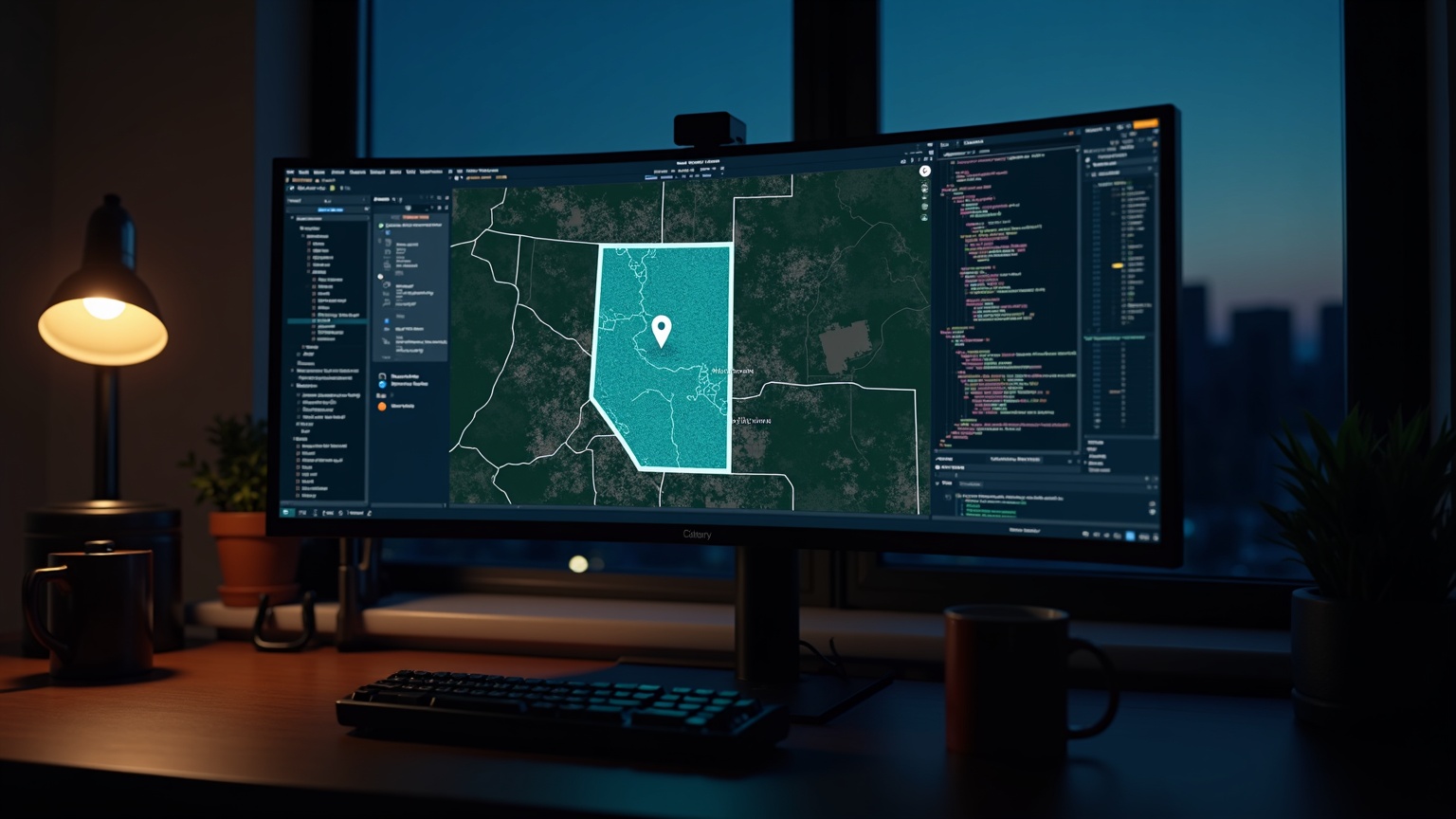
Call searchLocation("NW-25-24-1-W5") and a pin lands on the northwest quarter of Section 25, Township 24, Range 1, West of the 5th Meridian in Alberta - roughly 50 km southeast of Edmonton.
The legal_location property on the centroid feature gives you the canonical formatted description to use as the marker title or label.
Drawing the Boundary
Google Maps supports GeoJSON directly through map.data.addGeoJson(). The MultiPolygon feature in the search response can be passed in the same call - no coordinate parsing required on your end:
function drawBoundary(geojson) {
  map.data.forEach((feature) => map.data.remove(feature));
  map.data.addGeoJson(geojson);

  map.data.setStyle({
    fillColor: "#1a6b3c",
    fillOpacity: 0.2,
    strokeColor: "#1a6b3c",
    strokeWeight: 2
  });
}
Pass the full FeatureCollection from the search response and Google Maps renders both the centroid point and the boundary polygon. The data layer handles MultiPolygon geometry without any special treatment.
If you need to highlight multiple parcels at once - say, a grid of sections across a lease block - call drawBoundary() for each one and the polygons stack on the map.
Showing Parcel Details in an Info Window
When a user clicks the marker, an info window with the parcel breakdown is the natural next step. Pull the details from the MultiPolygon feature's properties object:
function attachInfoWindow(marker, geojson) {
  const polygon = geojson.features.find((f) => f.geometry.type === "MultiPolygon");

  if (!polygon) return;

  const p = polygon.properties;

  const content = `
    <div style="font-family: sans-serif; padding: 4px 8px;">
      <strong>${p.legal_location}</strong><br>
      Unit: ${p.unit}<br>
      Survey system: ${p.survey_system}<br>
      Province: ${p.province}
    </div>
  `;

  const infoWindow = new google.maps.InfoWindow({ content });
  marker.addListener("click", () => infoWindow.open(map, marker));
}
For a land agent showing a client their property, this gives them section-level detail without requiring them to interpret DLS notation. For an O&G field coordinator, it's a quick sanity check before dispatching a crew.
Authentication and Getting an API Key
Every request requires your API key in the X-API-Key header:
X-API-Key: YOUR_API_KEY
You can get an API key from the API page. The API integration guide walks through authentication, rate limits, and error handling in detail - worth reading before you go to production.
What This Looks Like in Practice
A surface lease coordinator at an energy company gets a list of 12 well locations from a regulatory filing - all in DLS format. They need to show the locations to a project manager who uses Google Maps. With the Township Canada API wired in, they can:
- Paste each legal land description into a search box
- See the marker and boundary appear on the map
- Click the marker to confirm the legal description, section, and province
- Hand the map link to the project manager
The API handles the DLS-to-coordinates conversion. Google Maps handles the rendering. The coordinator doesn't need to export a shapefile or open GIS software.
The same pattern works for agriculture: a crop insurance adjuster confirming which quarter section a claim applies to, or a grain company verifying field locations before issuing a delivery permit.
Going Further
This post covers the core pattern - search, marker, boundary, info window. The full Google Maps integration guide goes deeper: autocomplete search as the user types, a complete single-file working example, and notes on what the API does and doesn't support with Google Maps (vector tiles, for instance, require a different approach).
If you're earlier in the process and haven't set up API access yet, start with the API integration guide. It covers authentication, response formats, and how to handle errors cleanly before you build on top of it.
For pricing details - including what's available at each plan level - the pricing page has the full breakdown.
The Township Canada API is a good fit if you work with Canadian land data and need accurate DLS boundaries in a mapping context. The API reference covers all endpoints, query parameters, and response schemas.