By Township Canada
The Land Manager's Guide to Google Sheets: Batch Convert Legal Land Descriptions with a Formula
Batch convert legal land descriptions to GPS coordinates in Google Sheets using =TOWNSHIP_CANADA(). Step-by-step tutorial for land managers working with DLS, LSD, and NTS data.
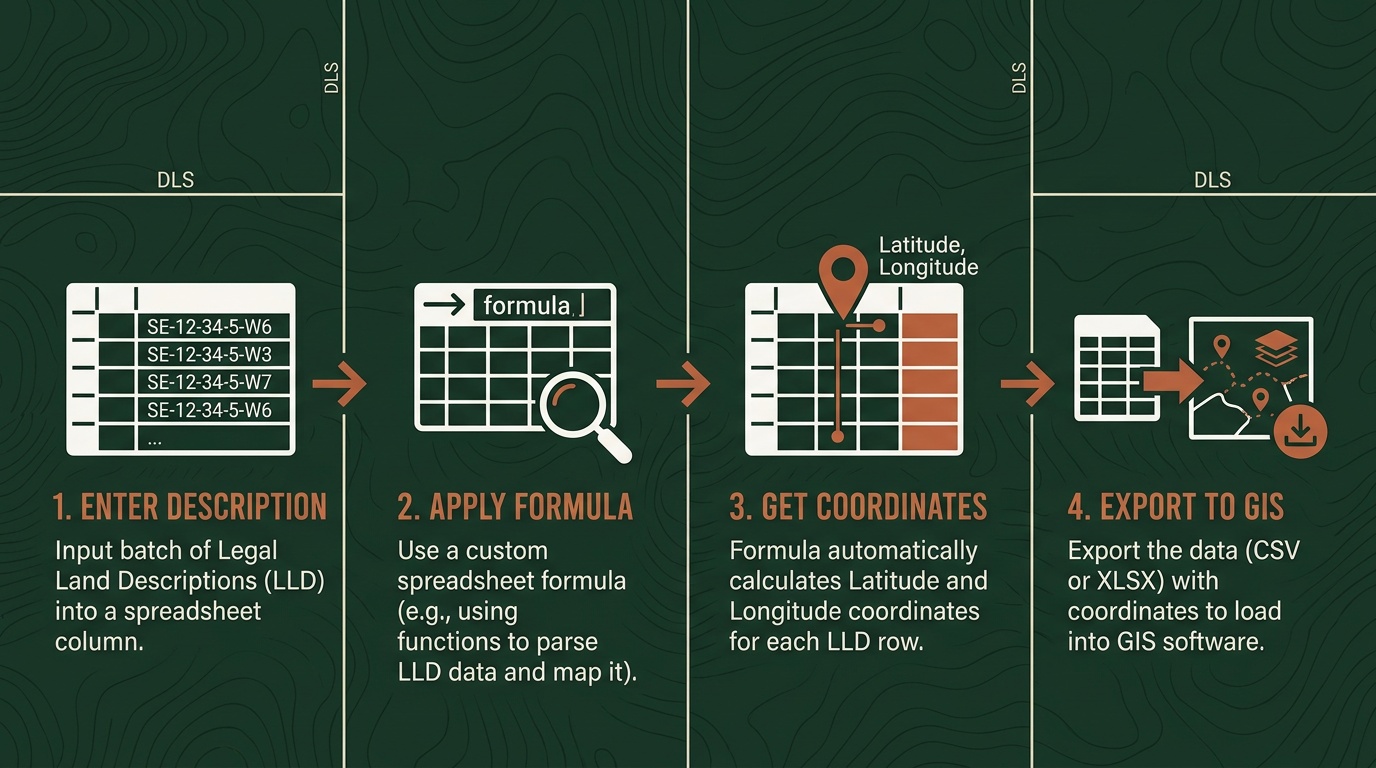
You have a Google Sheet with 140 surface lease descriptions in column A. Your GIS team needs GPS coordinates to plot them for a pipeline route assessment, and the deadline is end of week. Copying each description into a converter and pasting the result back - 140 times - is not a real workflow.
The Township Canada Google Sheets add-on puts a legal land description formula directly inside your spreadsheet. Type =TOWNSHIP_CANADA("NW-25-024-01W5") in any cell and GPS coordinates appear. Reference a column of descriptions, drag the formula down, and 140 descriptions become 140 coordinate pairs in a couple of minutes - no copy-pasting, no tab-switching.
This guide covers the complete formula-based workflow: installing the add-on, setting up a multi-column coordinate sheet, catching data errors automatically, and batching larger lists with the sidebar.
Installing the Add-On
Open any Google Sheet. Go to Extensions → Add-ons → Get add-ons, search "Township Canada", and click Install. The add-on requests permission to run custom functions and make external calls - both are required for the formula to work. The install takes under a minute.
The add-on includes 10 free conversions per month to test with immediately. For production lists, connect your Township Canada API key in the Settings dialog (Extensions → Township Canada → Settings). If you already have an API subscription, your existing plan covers add-on usage at no additional cost.
The Four Formulas
After installation, four custom functions are available anywhere in your sheet.
=TOWNSHIP_CANADA("LLD") returns a formatted coordinate pair. For individual fields - better when you're building a structured export or joining against another dataset - use the three companion functions:
| Formula | Returns |
|---|---|
=TOWNSHIP_CANADA_LAT("NW-25-024-01W5") | Latitude (decimal degrees) |
=TOWNSHIP_CANADA_LNG("NW-25-024-01W5") | Longitude (decimal degrees) |
=TOWNSHIP_CANADA_PROVINCE("NW-25-024-01W5") | Province name |
Use these with cell references rather than hardcoded strings. =TOWNSHIP_CANADA_LAT(A2) reads the description from cell A2 and returns its latitude. Drag the formula down to row 141 and the entire column converts.
The formulas handle any Canadian survey system the Township Canada converter supports: DLS quarter sections and LSDs, NTS grid references, Geographic Township lot-and-concession descriptions, River Lots, UWI, and FPS Grid. A column with mixed formats - Alberta DLS descriptions alongside Saskatchewan NTS references - converts without any special setup.
Setting Up a Multi-Column Coordinate Sheet
For most land management exports, you want latitude and longitude in separate columns. Here's a practical layout for a surface lease inventory:
| A | B | C | D |
|---|---|---|---|
| Legal Description | Latitude | Longitude | Province |
| NW-25-024-01W5 | =TOWNSHIP_CANADA_LAT(A2) | =TOWNSHIP_CANADA_LNG(A2) | =TOWNSHIP_CANADA_PROVINCE(A2) |
| NE-14-032-21W4 | =TOWNSHIP_CANADA_LAT(A3) | =TOWNSHIP_CANADA_LNG(A3) | =TOWNSHIP_CANADA_PROVINCE(A3) |
| SE-22-045-14W4 | =TOWNSHIP_CANADA_LAT(A4) | =TOWNSHIP_CANADA_LNG(A4) | =TOWNSHIP_CANADA_PROVINCE(A4) |
Enter the formulas in row 2, select B2:D2, and drag the fill handle down to the last row of your list. The Google Sheets legal land description formula fills in automatically for every row.
Column D earns its place even when your current project doesn't cross provincial lines. Surface lease lists that span Alberta and Saskatchewan look identical in DLS notation - the province column catches any descriptions that drifted into the wrong dataset.
Catching Meridian Errors Automatically
A transposed meridian in a DLS description places a location 250 kilometres from where it should be. NE-14-032-21W4 is near Drumheller. NE-14-032-21W3 is in Saskatchewan. Both are valid descriptions that convert without error - but they're not the same place.
The province column catches this automatically. If a description is supposed to be in Alberta but =TOWNSHIP_CANADA_PROVINCE() returns "Saskatchewan", that row has a data entry error. One visual scan down column D after the formulas run flags problems that would otherwise surface when a field crew shows up at the wrong location.
For a detailed look at how meridians, ranges, and township numbers work together, the DLS system guide covers the full notation system.
Batch Converting Larger Lists with the Sidebar
For lists over 200 descriptions, or when you'd rather keep the sheet formula-free, the add-on includes a sidebar batch converter. Open it from Extensions → Township Canada → Open Sidebar, select the range containing your descriptions, and click Convert. The sidebar writes coordinates to adjacent columns and shows a progress bar as it runs.
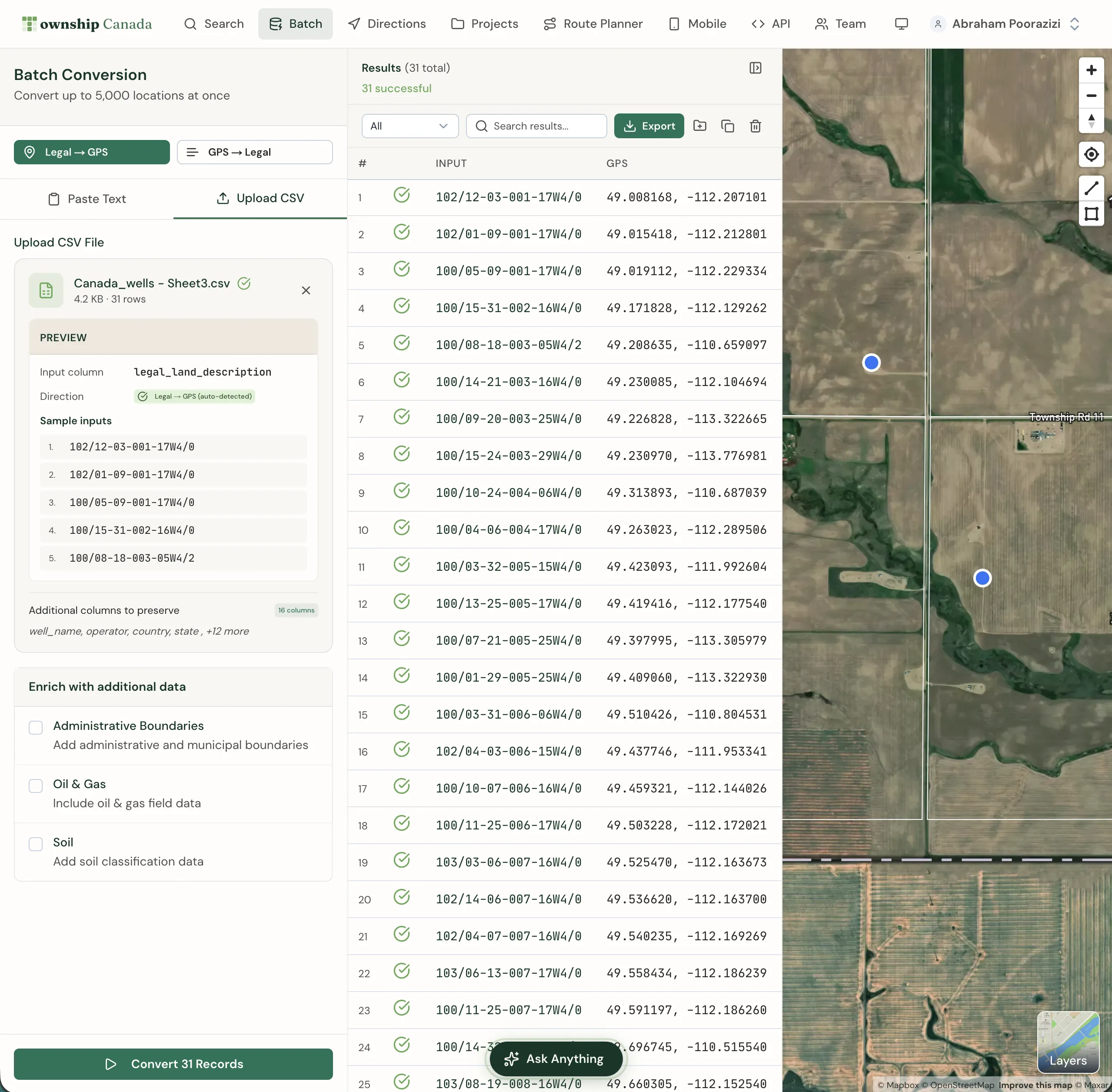
The sidebar processes up to 200 descriptions per run. For inventories in the thousands - quarterly AER filings, post-hailstorm insurance triage, farmland portfolio analysis - the web-based batch converter accepts CSV uploads and returns results in KML, Shapefile, and GeoJSON in addition to CSV. For the add-on's free tier of 10 conversions per month, use the sidebar or formula for smaller workflows.
Format Tip: Prevent Auto-Formatting
Google Sheets sometimes treats legal land descriptions as dates or numbers. A value like 06-32-048-07W5 may get reformatted unexpectedly. Before entering descriptions, select the column and set the format to Plain Text (Format → Number → Plain Text). This prevents the sheet from touching the raw description strings before the formula reads them.
Exporting to GIS
Once the coordinate columns are populated, go to File → Download → Comma Separated Values (.csv) and import into ArcGIS, QGIS, or any GIS tool that accepts coordinate-based point layers. The original legal description column carries through as an attribute, so the DLS reference stays linked to each GPS point.
For teams already inside Esri's environment, the Township Canada ArcGIS integration adds a native DLS and NTS locator directly inside ArcGIS Pro - an alternative for organizations where GIS is the primary tool and the Sheets step adds an unnecessary round-trip.
Get Started
Install the Township Canada add-on from the Google Workspace Marketplace - search "Township Canada" in Extensions → Add-ons → Get add-ons. Type =TOWNSHIP_CANADA("NW-25-024-01W5") in any cell to test it immediately - the add-on includes 10 free conversions per month.
When you're ready to convert a production list, connect your API key in the Settings dialog. For the full add-on overview including installation details and sidebar batch converter walkthrough, see the Google Sheets add-on guide. For individual lookups or lists that don't fit a spreadsheet workflow, the LSD converter and web-based batch converter handle both cases directly on the site.